Your availability
Availability is the most useful thing you can give your ministry leader. Every date you record is one they do not have to guess at, one fewer scramble for a replacement, and one fewer Sunday where a position sits empty because nobody knew you were in Guadalajara. It takes a minute, and it works for months.
How availability works
In Serve, open Availability. The page opens with a short reminder of what it is for:
Tell us when you cannot serve. Existing assignments stay on your schedule — we will flag them so staff can find a replacement.
That second sentence matters. Adding an unavailable date does not remove an assignment you already have. It flags it so your ministry leader knows to find cover. If you are already scheduled on a date you can no longer make, also ask for a replacement — see Replacements and trades.
Adding unavailable dates
Tap Add unavailable dates and choose what kind of entry you need.
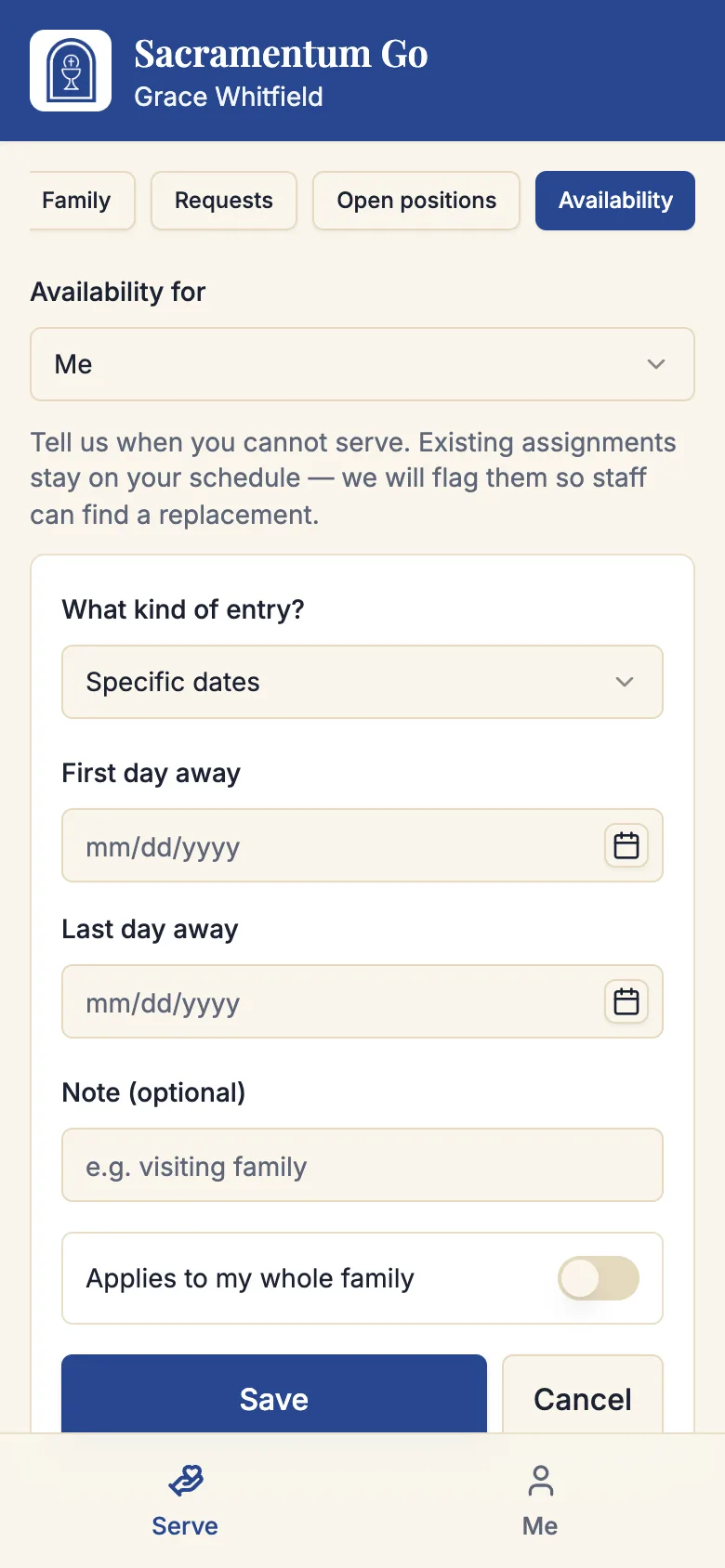
Specific dates
For a trip, a surgery, a wedding — anything with a start and an end.
- Choose Specific dates.
- Set the First day away and the Last day away.
- Add a Note if it helps your leader — "visiting family."
- Tap Save.
For a single day, set both dates to the same day.
Repeating days
For a standing commitment — a class every Tuesday, work every other Sunday morning.
- Choose Repeating days.
- Under Which days?, tap the weekdays you are unavailable.
- Under How often?, choose Every week, Every other week, Every third week, or Every fourth week.
- Set Starting from, and Until if it ends on a known date.
- Tap Save.
The entry then reads back to you in plain language — Every other week on Sun, Wed — so you can check it at a glance.
"Every other week" counts from the Starting from date you set. If your alternating weekend starts on the 12th, set that as the starting date rather than today, or the pattern will land on the wrong weeks.
Every year
For the same stretch of the calendar every year — a family reunion in the first week of August, Christmas with in-laws.
- Choose Every year.
- Enter the From (MM-DD) and To (MM-DD) dates. Use month and day only — no year.
- Tap Save.
It reads back as Every year, 08-01 to 08-07 and applies from now on without your having to re-enter it each year.
Applying it to your whole family
If your parish has your household linked and you serve alongside other family members, entries offer Applies to my whole family. Turn it on when the reason applies to everyone — the family is away, not just you.
At the top of the page, Availability for lets a guardian switch between Me and each person in their care, so a parent can enter one child's exam week without touching the other's. Entries a guardian added on someone else's behalf are labelled Added by guardian.
Reviewing and removing
Your saved entries are listed with a plain-language summary of each. Tap Remove to delete one. If nothing is on file, the page says No unavailable dates on file.
Review your list at the start of each season. Old one-off entries clutter it, and an "every year" entry you forgot about can quietly remove you from the schedule for a week you are now free.
Depending on your parish's settings, availability changes may apply immediately or go to a ministry leader for review. Most parishes apply them right away, because nobody knows your calendar better than you do.
Habits that make it work
- Enter the whole year's known absences at once, at the start of the year. Ten minutes in January saves ten conversations later.
- Be honest about the standing commitments, not just the exceptional ones. A recurring Tuesday class is exactly the kind of thing repeating entries exist for.
- Add the dates before the schedule is built. Availability entered after a schedule is published cannot un-assign you; it only flags the problem.
- Do not use availability to say "I would rather not." That is what preferences are for, and preferences let a leader stretch when they truly need you. See Your serving preferences.
Troubleshooting
"Pick at least a start or an end date"
A specific-dates entry needs at least one of the two. If you are away a single day, set both to that day.
"The end date must be on or after the start date"
The dates are the wrong way round.
"Use real MM-DD calendar dates for both annual dates"
An annual entry needs both dates in month-day form, such as 08-01, and both must be real calendar dates.
"Pick a start date for a repeating interval"
An "every other week" pattern needs a starting week so Sacramentum knows which weeks count.
I marked myself unavailable but I am still on the schedule
That is expected — an existing assignment stays yours. Your leader can see it is flagged, but the reliable move is to also ask for a replacement on that assignment.
"We could not load your availability"
Tap Try again. Do not make changes until it loads, so you are not editing a stale list.
What's next
- Your serving preferences — which services you prefer, and how often
- Replacements and trades — for a date you are already scheduled on
- Your serving schedule — check what you are already committed to
Related articles
- Serving in a ministry — opening Serve
- Families and young servers — entering availability for someone in your care
- Open positions — you are only offered positions you are free for