Attendance
A schedule says who was meant to serve. Attendance says who did. The gap between the two is where the useful questions live: who quietly covers for everyone else, which family has drifted away without saying so, whether the 7:00 AM Mass is actually staffed or only staffed on paper.
Recording attendance is optional. A parish that never opens this screen loses nothing it already had — but the six attendance reports stay empty, and serving history is inferred from assignments rather than observed.
Before you begin
- You need Record attendance or Reconcile attendance access. Parish administrators hold both; ministry leaders receive them by grant. See Leaders and access.
- Attendance is recorded per position, and only for positions whose service requirement has Track attendance turned on. See Service requirements.
- A ministry leader sees only the services inside their granted scope.
Two levels of access
The two grants are deliberately different sizes, because recording that somebody showed up and recording that somebody did not are different acts.
| Access | Can record | Cannot |
|---|---|---|
| Record attendance | Present, Substitute | Mark anyone absent, void an entry |
| Reconcile attendance | Everything above, plus No-show and Excused | — |
A sacristan can be given the first without ever being put in the position of marking a parishioner absent.
Recording attendance
Navigate to Admin Dashboard → Ministry Scheduler → Attendance. Ministry leaders who are not administrators reach the same screen from the Ministry Scheduler card on their dashboard.
- Choose a Date.
- Choose a Service. Only services with staffed positions on that date appear.
- For each volunteer, set an Attendance result and click Save attendance.
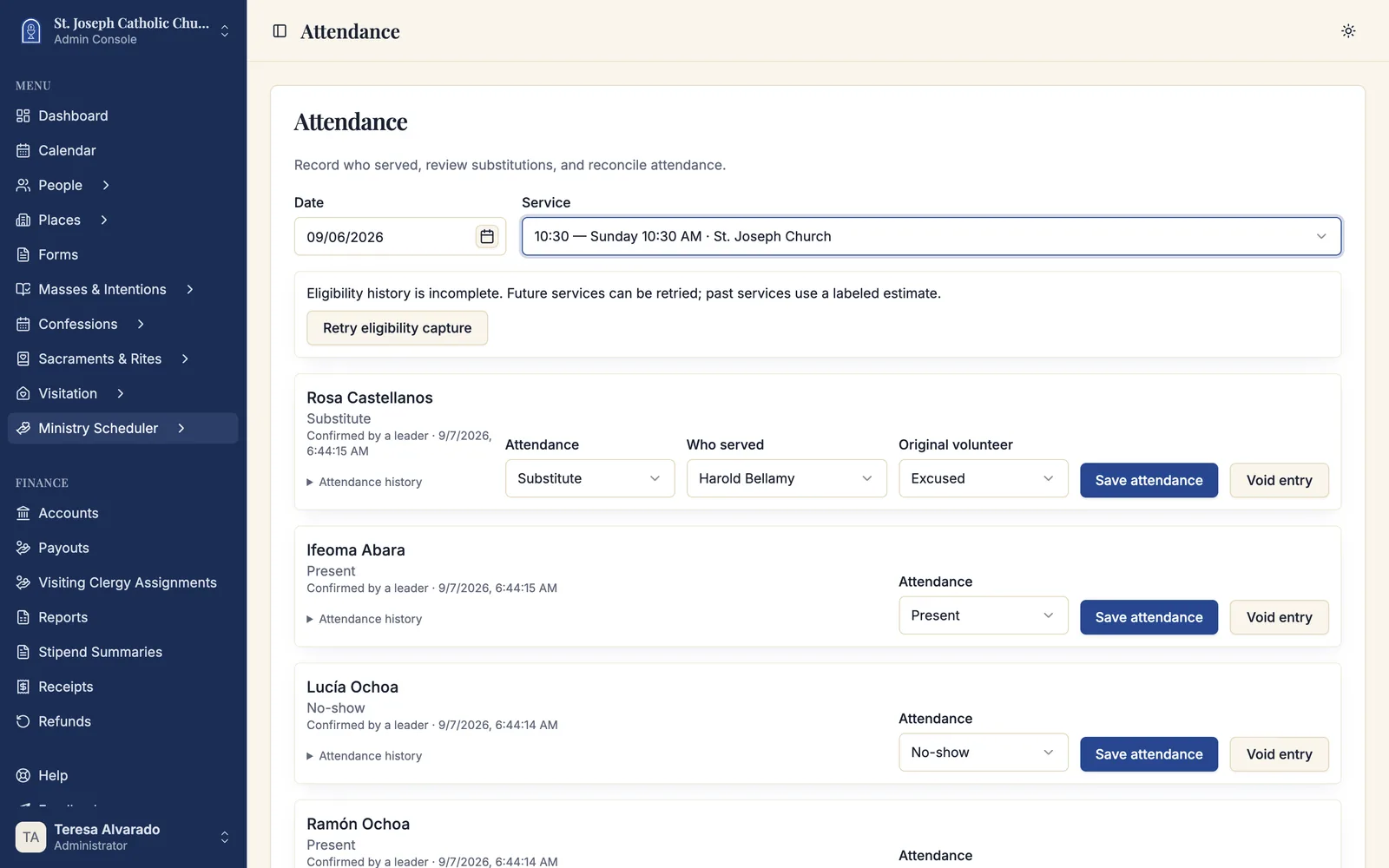
Each row shows the assigned volunteer and what has been recorded so far — Unconfirmed until somebody says otherwise.
The four results
| Result | Means |
|---|---|
| Present | The assigned volunteer served, as scheduled. |
| Substitute | Somebody else served in their place. |
| No-show | Nobody served and nobody said anything beforehand. |
| Excused | Nobody served, but the absence was known and accepted. |
No-show and Excused record the same fact — the position went unfilled — and differ only in what they say about the volunteer. That distinction is the whole reason both exist: it is what keeps the inactivity report from treating a bereavement like a pattern of not turning up.
Substitutes take two answers, not one
Choosing Substitute asks a second question: Who served, and then Original volunteer.
The first is a list of people genuinely eligible for that position on that date — the same eligibility check the schedule board uses, so you cannot accidentally record somebody who was never permitted to fill it.
The second is what happened to the person who was assigned: Unconfirmed, No-show, or Excused. It is easy to skip, and skipping it is what leaves a volunteer's record looking worse than it should. Somebody who arranged their own cover and told the parish is not a no-show.
Extra volunteers
Somebody who served without being assigned is recorded under Extra service: choose the Role, choose the person, and click Add extra service.
This is not an edge case. On a Sunday when a lector does not appear and a parishioner steps up from the pew, the extra entry is the only record that the reading happened at all — and the only way that person's willingness ever shows up in a report.
Turning tracking on
Attendance is off by default for every position. Turn it on per requirement, in Service Requirements, with Track attendance.
Positions without it show Attendance is not tracked for this position and cannot be recorded. That is worth using deliberately: most parishes want attendance on the ministries where absence is disruptive — lectors, extraordinary ministers, ushers — and are content not to track the ones where it is not.
Automatic absence after 48 hours
A parish can let Sacramentum close out attendance on its own. Under the parish's Ministry Scheduler settings, Automatically reconcile after 48 hours marks anybody who has not checked in as absent, 48 hours after the service ends.
Each ministry can opt out with Review absences manually, which is the right setting wherever a leader would rather look before anyone is marked absent.
The two settings interact, and the ministry dialog says which state you are in:
| What you see | What it means |
|---|---|
| Otherwise, volunteers who haven't checked in are automatically marked absent 48 hours after the service. | The parish setting is on and this ministry has not opted out. |
| Automatic absence marking is off in the parish's Ministry Scheduler settings. | This ministry's preference is saved but has no effect until the parish turns the feature on. |
Automatic entries can always be corrected by a leader afterwards. They are labelled, so nobody has to guess whether a person or the system decided.
Where an entry came from
Every recorded entry carries its source, because a report that mixes observation with inference is worth less than one that says which is which.
| Label | Meaning |
|---|---|
| Confirmed by a leader | A person recorded it on this screen. |
| Automatically reconciled | The 48-hour policy closed it out. |
| Kiosk / Family kiosk | Recorded at a check-in kiosk. |
| Historical serving record | Carried over from serving history that predates attendance tracking. |
Correcting a mistake
Void entry withdraws an entry without deleting the history behind it; Restore entry brings it back. Voiding is available to Reconcile attendance holders only.
Use it when the entry is wrong, not when the outcome changed — a volunteer who was marked absent and then turned out to have swapped with somebody should be recorded as a Substitute, which is a correction, not a void.
Finishing a service
Finish reconciliation closes a service out. Sacramentum checks first that every tracked position has a disposition and every recorded extra has been confirmed, and refuses with Some attendance remains unresolved if not.
A substitute without an explicit absence disposition for the original volunteer counts as unresolved. That is intentional — it is the single most commonly skipped field on this screen.
Troubleshooting
The screen says no services were found
Attendance only lists services with staffed positions on that date. If a date looks empty, check that the schedule covering it has had positions generated, and that at least one requirement on it has Track attendance turned on.
A volunteer's serving credit did not update
Serving credit needs to be updated. Attendance has been saved. means the attendance record is safe but the achievement projection behind it has not caught up. Click Retry serving credit. The attendance itself is not at risk.
Eligibility history is incomplete
Eligibility history is incomplete appears when the evidence recorded before a service was not captured completely. Future services can be retried with Retry eligibility capture; past ones fall back to a labelled estimate using current rules, and the reports say so rather than presenting an estimate as an observation.
What's next
- Ministry reports — the six attendance reports, and what each one answers
- Service requirements — where Track attendance is turned on
Related articles
- Building a schedule — where the assignments attendance is recorded against come from
- The requests inbox — replacements and trades, which are how an absence gets covered before the day
- Leaders and access — granting Record attendance without Reconcile attendance