Building a schedule
A schedule is a date range you are staffing — a month, a liturgical season, a quarter. Creating one turns your service requirements into concrete open positions for every Mass in that range, and gives you a board where those positions get filled. Nothing you do here is visible to volunteers until you publish, so a draft schedule is a private workspace you can experiment in freely.
Before you begin
- Your service requirements must exist and point at the right Mass schedules. See Service requirements.
- Your rosters should be populated, or the candidate lists will be empty. See Ministries, roles, and members.
Creating a schedule
Navigate to Admin Dashboard → Ministry Scheduler → Schedules and click New Schedule.
- Enter a Name in English and Spanish — "Advent 2026" or "October 2026" reads better on a volunteer's phone than "Schedule 4."
- Set the Start and End dates.
- Click Create schedule.
All enabled service requirements are included by default. The schedule is created in Draft state.
Staff one month at a time until your parish has a rhythm. A shorter range is faster to fill, easier to validate, and much less painful to rebuild when you discover a requirement was pointed at the wrong Mass.
The schedule states
| State | What it means |
|---|---|
| Draft | A private workspace. Positions can be generated and filled; volunteers see nothing. |
| Live | Published. Volunteers see their assignments, replacements and trades are available, and notices have gone out. |
| Closed | The period is over or the schedule is retired. No further changes; it can be reopened. |
| Archived | Put away for good. Kept for history and reporting. |
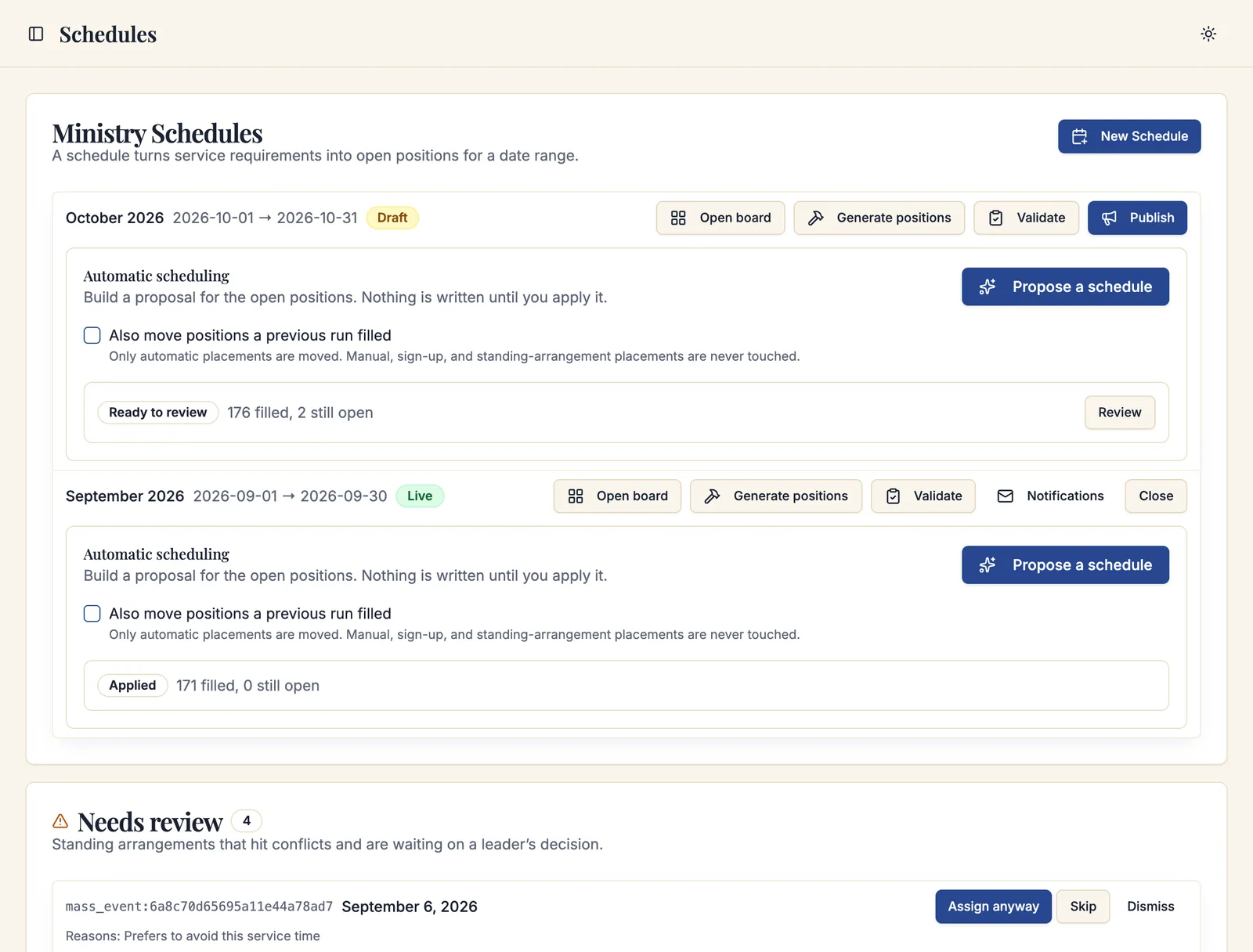
Generating positions
Click Generate positions on the schedule. Sacramentum walks every Mass occurrence in the date range, reads the service requirements that cover it, and creates the positions those requirements call for.
A summary reports how many positions were created, how many were unchanged, and how many occurrences were skipped. Skipped occurrences lists each one by the day it falls on, with the reason it was passed over:
| Reason | What to do |
|---|---|
| The Mass is cancelled | Nothing — cancelled occurrences are correctly skipped. |
| No enabled service requirements | Create a requirement for that Mass schedule, or enable the archived one. |
| No occurrences in the date range | Check the schedule's start and end dates. |
| The source event no longer exists | The Mass schedule was deleted. Point the requirement at the current one. |
| The attached event is outside this schedule's date range | Expected for one-off events attached outside the range. |
| A filled position blocks the reduced count | Someone is assigned to a position a lowered requirement would remove. Release the assignment, then regenerate. |
You can generate positions again at any time while the schedule is in draft. Positions that already exist are left alone; only new ones are added.
The schedule board
Click Open board to fill the positions. The board shows one week at a time, with the schedule's name and state at the top and arrows to page between weeks.
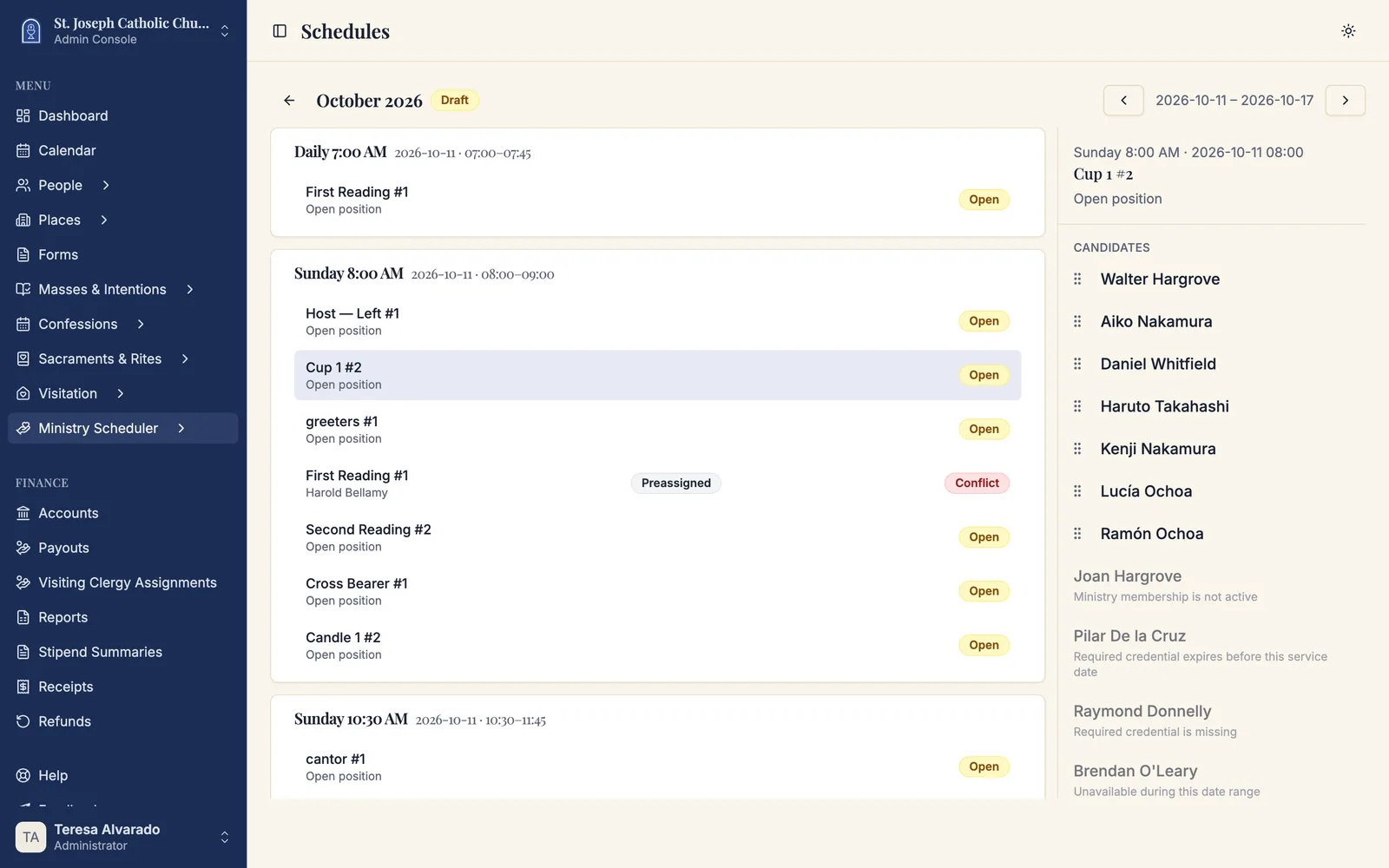
Each service in the week is a card. Under it, one row per position, showing the position label, who is assigned, and any badges the assignment carries:
- Open — nobody is assigned yet.
- Conflict — the assignment has a problem a leader should look at.
- Also serving as (role) — this person holds a second role at the same service.
Select any position to open the Candidates panel — on the right on a desktop screen, as a dialog on a phone or tablet.
If you are a ministry leader rather than a parish administrator, the board shows a Showing your ministries badge and only the positions inside your granted scope. That is not an error; it is your access working as intended.
Assigning someone to a position
With a position selected, the Candidates panel lists everyone who could serve there, in the order Sacramentum recommends.
- Click a candidate to assign them, or drag a candidate onto the position.
- Candidates who are eligible with no reservations can be dragged directly.
- Candidates who carry warnings must be confirmed from the panel — expand them, read the reasons, optionally record a Reason, and click Confirm assignment.
Warnings are not refusals. They are the scheduler telling you what it knows: this is closer to their other assignments than their spacing preference, they marked this service as one they prefer to avoid, their household normally serves together and this would split them up. A leader may override them, and the override is recorded with the assignment so it can be explained later.
If nobody appears in the panel, the message tells you why — most often No one is enrolled in this role yet.
Replacing or releasing someone
Select a filled position and the panel offers:
- Replace with — the candidate list, to swap in someone else directly.
- Release — remove the assignment and reopen the position. Confirm to complete it.
- Request replacement — start a replacement request rather than releasing outright. The volunteer stays on the schedule until someone accepts, and eligible volunteers are invited to cover. See The requests inbox.
Prefer Request replacement over Release for a live schedule. Releasing leaves a hole for you to fill; requesting a replacement asks the roster to fill it for you, and the original volunteer keeps the assignment until someone actually says yes.
Validating
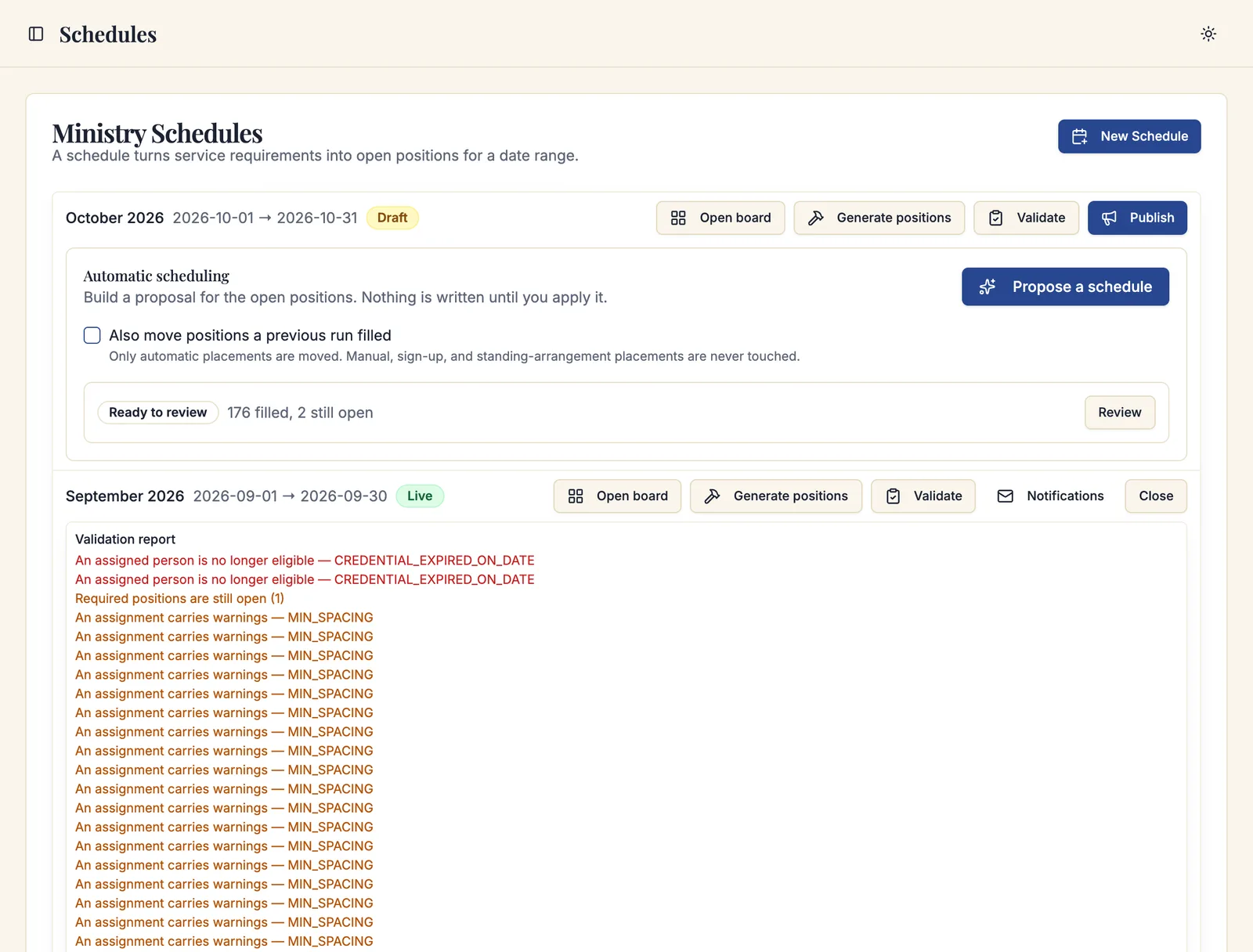
Click Validate on the schedule to run the checks before publishing. The Validation report either says Ready to publish — no problems found or lists what it found:
| Finding | What it means |
|---|---|
| Positions have not been generated yet | Click Generate positions first. |
| An assigned person is no longer eligible | Something changed after the assignment — a lapsed credential, a new unavailability, an ended membership. Reassign or override. |
| Another live schedule covers the same Masses and dates | Two live schedules would both claim the same services. Close the old one first. |
| Staffing requirements changed after positions were generated | A service requirement was edited. Regenerate positions. |
| Required positions are still open | Positions marked Required have nobody in them. |
| An assignment carries warnings | A leader overrode a warning, or one appeared afterwards. |
Validate as often as you like — it changes nothing.
Publishing
Click Publish when the schedule is ready.
- If the schedule is clean, it goes live immediately.
- If it has warnings, Sacramentum asks Continue with warnings? and shows them. Click Acknowledge and continue to publish anyway; the warnings stay visible while the schedule is live.
- If it has problems that must be fixed first, publishing is blocked and the report tells you what to resolve.
Publishing does several things at once: volunteers can see their assignments, replacements and trades open up, notices are queued in each recipient's language, and any publication links pointed at "the latest live schedule" start showing this one.
What happens next — the notices, the print queue, the shareable links — is covered in Publishing and sharing schedules.
If another schedule activation is already running, Sacramentum asks you to try again in a moment. This is a safety measure that keeps two administrators from publishing overlapping schedules at the same time. Wait a few seconds and click Publish again.
Closing, reopening, and archiving
- Close a schedule when its period is over. Closing keeps everything visible for reporting but stops further changes.
- Reopen a closed schedule if you need to correct something. It returns to live.
- Archive a schedule you are finished with. Archived schedules cannot be selected for publication links and cannot be edited, but their history and reports remain.
Troubleshooting
The board says "No positions this week"
Positions have not been generated for that week, or no service requirement covers those Masses. Go back to the schedule and click Generate positions, then read the Skipped occurrences list.
Everyone in the candidate list has warnings
That usually means a parish-wide limit is tighter than the roster can support — a weekend cap or a minimum spacing that this ministry's small roster cannot satisfy. Check the caps under Settings → Ministry Scheduling and the volunteers' own limits under their preferences. See Scheduling rules and limits.
Publishing is blocked by "Another live schedule covers the same Masses and dates"
Two live schedules overlap. Close the older one, then publish the new one.
I published the wrong schedule
Close it. Volunteers keep any notices already sent, so follow up with the affected ministries directly — closing a schedule does not un-send an email.
What's next
- Automatic scheduling — let Sacramentum propose the assignments
- Publishing and sharing schedules — notices, print packets, and shareable links
- The requests inbox — replacements, trades, and sign-ups after publication
Related articles
- Service requirements — what positions are generated from
- Teams and standing arrangements — the placements that happen automatically
- Scheduling rules and limits — why a candidate carries a warning
- Ministry reports — coverage and fairness across your schedules