Publishing and sharing schedules
Publishing a schedule is the moment it stops being your working document and becomes the parish's. Volunteers can see their assignments, notices go out in each person's own language, replacements and trades open up, and any shared link pointed at the latest live schedule starts showing this one. This article covers everything that happens after you click Publish.
Before you begin
- The schedule must be validated and published. See Building a schedule.
- Email notices go out through your parish's configured sender. If email is not set up, notices will queue but not deliver. See Settings reference.
Who gets notified
When a schedule goes live, Sacramentum emails every volunteer with an assignment on it, in the language their record says they read. A young volunteer's notice is routed according to their guardian links — to the guardian only, to both, or to the young person only.
Assignments that change later generate their own notices, and reminders go out ahead of each service according to the Reminder lead days set under Settings → Ministry Scheduling (three days before, by default).
Volunteers can turn off scheduling email in their own preferences. A volunteer who does so is counted as Email turned off in the delivery report rather than silently skipped.
Checking delivery
Click Notifications on a live schedule to open Who was notified. It reports:
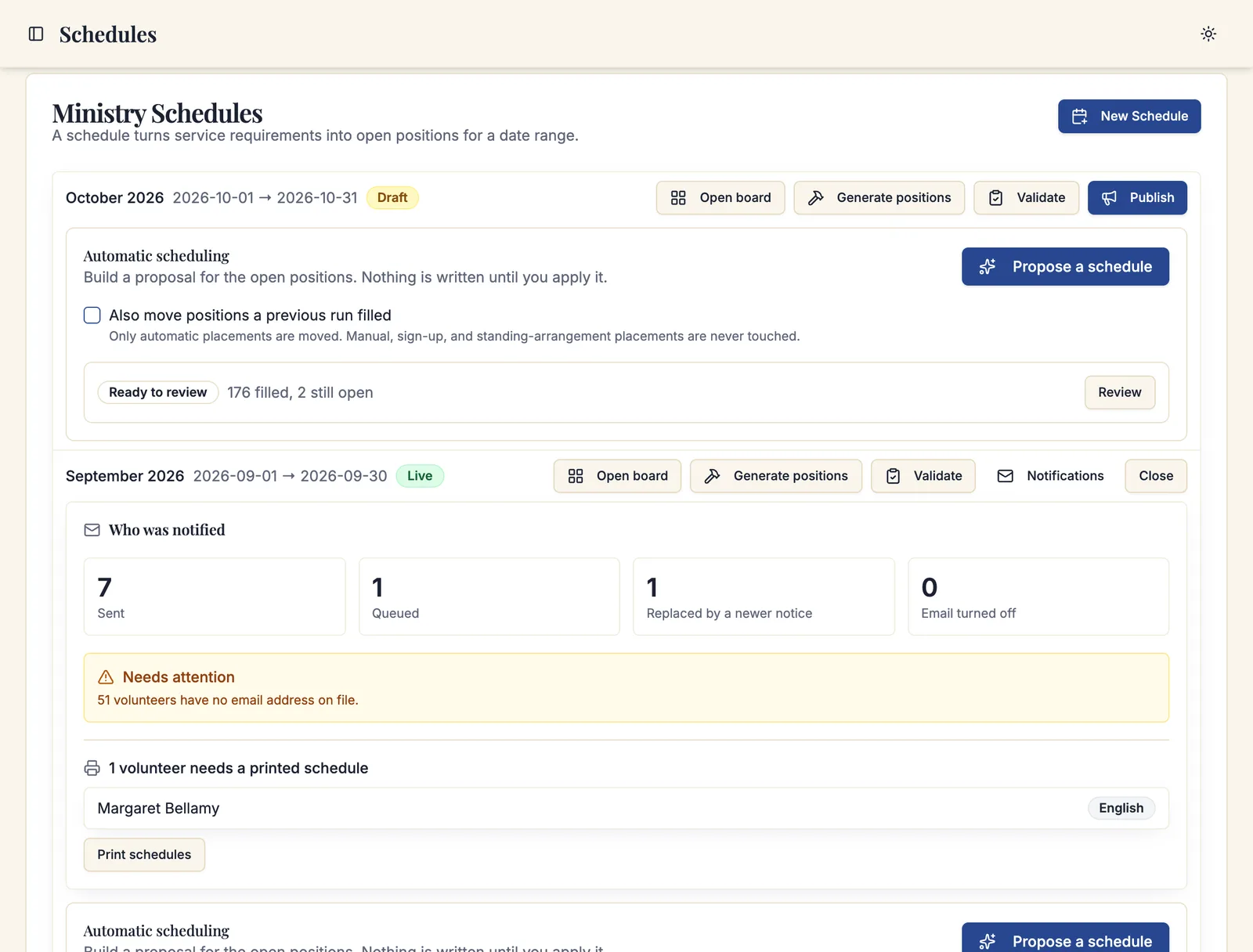
| Count | Meaning |
|---|---|
| Sent | Delivered. |
| Queued | Waiting to go out. |
| Replaced by a newer notice | Superseded — the assignment changed before this one was sent, so a newer notice went instead. |
| Email turned off | The volunteer chose not to receive scheduling email. |
Above those, a Needs attention banner appears whenever something requires a person:
- n volunteers have no email address on file — add addresses in the parish directory, or add these volunteers to the print queue.
- n notices could not be delivered — a bad address or a bouncing mailbox. Correct the address and the next notice will reach them.
Check Who was notified the day after you publish, not the moment you publish. Notices are queued and delivered in the background, so a large parish's first look will show mostly Queued and tell you nothing.
Printed schedules
Not every volunteer has email, and a parish that schedules seventy-year-old sacristans knows it. A volunteer can mark in their preferences that they need a printed schedule; when they do, their copy joins the print queue after each publication.
On the Who was notified panel:
- The queue shows n volunteers need a printed schedule.
- Click Print schedules to build the packet. It opens in a new window ready to print.
- After printing and distributing, click Confirm printed copies to clear the queue.
If nothing opens, your browser blocked the pop-up — allow pop-ups for Sacramentum and try again.
Sharing a read-only link
Publication links let you put a schedule in front of people who have no Sacramentum account at all: a sacristy noticeboard, a ministry's WhatsApp group, a parish website page.
Find them in the Publication Links section under Admin Dashboard → Ministry Scheduler → Schedules.
Creating a link
- Click New Link.
- Choose the Schedule:
- Always the latest live schedule — the link keeps working as you publish each new season. Best for a permanent noticeboard.
- Pinned schedule — the link always shows this one schedule. Best for a link you are sending about a specific season.
- Choose the Name display:
- Full names
- First name + last initial
- Role counts only — no names at all, just how many people are serving in each role.
- Decide whether to Show open positions.
- Click Create link.
The link is shown once, in a Copy this link now dialog. Copy it before you close the dialog — for security it is never shown again. If you lose it, click New link on the row to rotate to a fresh one.
A publication link is a secret URL: anyone who has it can see the schedule, with no sign-in. Choose the name display accordingly, and use Revoke the moment a link should stop working — after a volunteer leaves a ministry group chat, for example. Revoking is immediate and cannot be undone, but you can always create a new link.
Contact details are never shown on a published link, whatever the name display setting. Archived schedules cannot be pinned to a link.
What visitors see
The page renders the schedule read-only, grouped by service, with each service showing n serving · n open and the assignments underneath. A revision number at the top tells a returning visitor whether anything has changed. If the link has been revoked or the schedule is no longer live, visitors see This link is no longer active. Please ask the parish office for a current schedule link.
What volunteers see after publication
Each volunteer's own assignments appear in My Parish → Serve → My schedule, and a parent sees the whole family's under Family. From there a volunteer can subscribe to a private calendar feed so their assignments land in their phone's calendar app, ask for a replacement, or offer a trade.
That side is documented in Your serving schedule.
Changing a schedule after publication
Live schedules can still be edited from the board — assign, release, replace. Every change generates its own notice to the people affected, so a live schedule is not frozen; it is simply honest about what it tells people.
For a change that needs the roster's help rather than yours, use Request replacement instead of releasing. See The requests inbox.
Troubleshooting
Volunteers say they never got an email
Open Who was notified and look for Needs attention. The two usual causes are no address on file and a delivery failure. Also check that the volunteer has not turned scheduling email off in their preferences, and that your parish's email settings are configured.
The print packet will not open
Your browser blocked the pop-up. Allow pop-ups for Sacramentum and click Print schedules again.
A shared link shows "Schedule not available"
The link was revoked or rotated, or the schedule it was pinned to is no longer live. Create a new link, or point one at Always the latest live schedule.
The shared link shows an old schedule
It is pinned to a specific schedule. Create a new link set to Always the latest live schedule instead.
What's next
- The requests inbox — replacements, trades, and sign-ups on a live schedule
- Ministry reports — including a message delivery report across all schedules
- Your serving schedule — what volunteers see in My Parish
Related articles
- Building a schedule — validation and publication
- Settings reference — parish email configuration
- Scheduling rules and limits — reminder lead days and name display defaults