Teams and standing arrangements
Some of a parish's scheduling is not a puzzle to be solved each month. The Ochoa family has taken the Saturday 5:00 vigil for eleven years. The Tuesday crew covers the first Tuesday of every month. Recording those commitments once, as teams and standing arrangements, means they place themselves every time a schedule is built and you only ever schedule what is genuinely open.
Before you begin
- The ministries and roles the team serves in must already exist. See Ministries, roles, and members.
- A standing arrangement is attached to a service requirement, so the requirement for that service must exist first. See Service requirements.
Teams
Navigate to Admin Dashboard → Ministry Scheduler → Teams. A team is a named group of people who serve together — useful whenever you would otherwise place the same four names side by side over and over.
Creating a team
- Enter a New team name — something the parish would recognize, such as "Tuesday crew."
- Click Create team.
- Open the team to add its members.
Editing a team
The team editor holds everything about how the team is scheduled:
- Team name and Description.
- Members — add each person, and give them a Member role if they always fill a specific one. Leave the role blank and the member serves in whatever role the standing arrangement names.
- Lead — mark one or more members as leads. This is a label for the parish's benefit; it does not grant any permission.
- Active — a member who is temporarily away can be set inactive without being removed.
- Roles this team serves — leaders whose access covers these roles can see the team.
- Minimum members per occurrence — below this number, scheduling warns instead of quietly staffing a service with half a team. Leave blank for no minimum.
A team holds at most 30 members. If yours is larger, it is really two teams.
Removing a member from a team that has active standing arrangements stops them from being scheduled wherever those arrangements place the team. Sacramentum asks you to confirm before it does that.
Archiving a team
Click Archive on the team. If the team still has active standing arrangements, the archive is blocked and Sacramentum tells you how many — end those arrangements first. Click Restore to bring an archived team back.
Standing arrangements
A standing arrangement is a recurring commitment to a specific service: this person, or this team, in this role, on this rhythm, starting on this date.
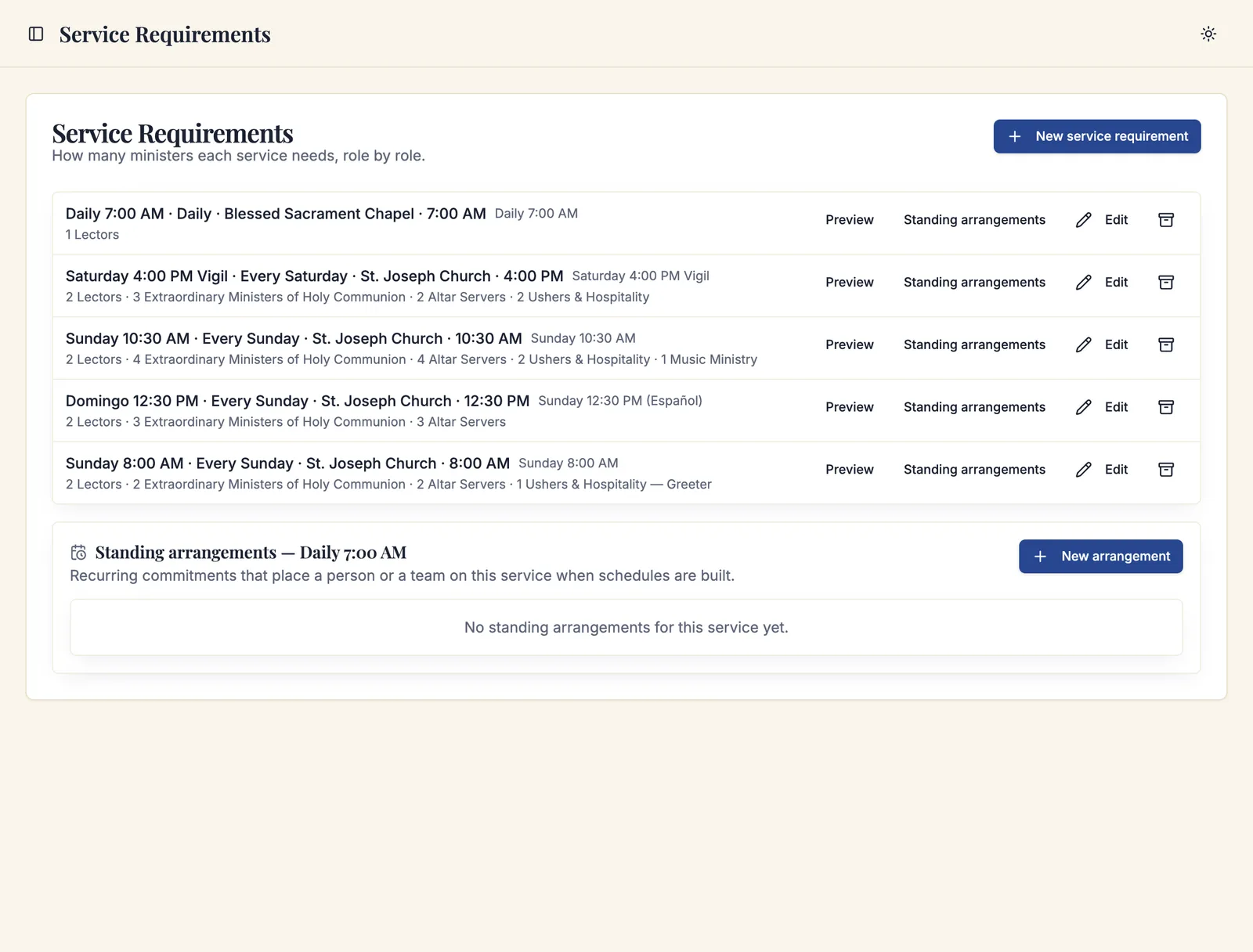
Find them under Admin Dashboard → Ministry Scheduler → Service Requirements, on the requirement for the service in question, in the Standing arrangements section.
Creating a standing arrangement
- Click New arrangement.
- Choose Who serves — A person or A team.
- Pick the person or the team.
- Choose the Role, and a Position if the role has labelled positions. Choose Any position if it does not matter which.
- For a team, set a Default role: members without a role of their own serve in this one.
- Choose How often:
- Every service — every occurrence of this service.
- Certain weeks of the month — pick one or more, including Last week of the month.
- Every few weeks — set how many Weeks apart and the week you are Counting from.
- Set Starts on, and Ends on if the commitment has a known end.
- Choose When a date conflicts — see below.
- Set a Priority. When two arrangements want the same position, the higher priority wins.
- Save the arrangement.
Who serves, the role, the position, and the start date cannot be changed after the arrangement is created. To change any of them, end the arrangement and create a new one. The rhythm, the end date, the conflict behavior, and the priority remain editable.
When a date conflicts
Even a standing arrangement has to pass the scheduling rules. If the person is on vacation that week, or the position is already filled, or a household rule blocks it, the arrangement hits a conflict — and this setting says what happens:
| Setting | What happens |
|---|---|
| Assign with a warning | The person or team is placed anyway, flagged with a warning a leader can see. |
| Skip the occurrence | That date is left unfilled without asking. The skip is recorded on the arrangement. |
| Hold for review | The conflict parks in the Needs review queue on the Schedules page until a leader decides. |
Hold for review is the right default for most parishes: nothing happens silently, and nothing is placed over a real conflict.
Applying an arrangement to schedules
When you save a new arrangement, Sacramentum fills any draft schedules that cover its dates immediately and tells you how many.
Live schedules are treated differently, because volunteers can already see them. Sacramentum lists them and asks you to apply the arrangement to each one explicitly with Apply to (schedule name). Confirm, and the arrangement is written onto that live schedule — with every placement still passing the scheduling rules, and a summary of how many were assigned and how many were skipped.
Ending an arrangement
Click End on the arrangement. No new occurrences are placed from that point forward, and assignments already made keep their history. Ending is the correct way to retire a commitment — there is no delete.
The "Needs review" queue
Conflicts held for review appear on Admin Dashboard → Ministry Scheduler → Schedules, in the Needs review section. Each card names the service, the position, and the reasons it was held.
For each card you can:
- Assign anyway — place the arrangement despite the warnings. Your confirmation overrides them and is recorded with the assignment.
- Skip — leave the position open so it can be filled another way.
- Dismiss — close the card without placing anyone. It reopens only if the underlying facts change.
Work this queue before you validate a schedule, not after. Every card you resolve is one fewer surprise in the validation report.
If another leader gets to a card first, Sacramentum tells you it was already handled rather than applying your decision twice.
Teams, standing arrangements, or automatic scheduling?
| Use | When |
|---|---|
| A standing arrangement for a person | One individual has a recurring commitment to one service. |
| A team with a standing arrangement | A group serves together on a recurring rhythm, and you would otherwise place the same names side by side. |
| Automatic scheduling | The positions are genuinely open and you want them distributed fairly across the roster. |
| Self-signup | You would rather let volunteers choose, and you trust the eligibility rules to keep it safe. |
These combine. A typical Sunday has the family that always ushers placed by a standing arrangement, the lectors filled by automatic scheduling, and the greeters left open for whoever signs up.
Troubleshooting
A standing arrangement did not place anyone
Open the arrangement and check its rhythm and dates, then check the Needs review queue — if its conflict behavior is Hold for review, the placement is waiting on a decision. If it is set to Skip the occurrence, the arrangement records the skip and moves on silently.
The team was placed with only half its members
The rest were blocked by the scheduling rules — unavailable, already serving elsewhere that day, or missing a required credential. Set a Minimum members per occurrence on the team so this warns you next time instead of passing quietly.
An arrangement I created did not touch our published schedule
That is by design. Live schedules are never modified silently. Use Apply to (schedule name) on the arrangement to write it onto a live schedule after confirming.
What's next
- Building a schedule — generate positions and fill what is left open
- Automatic scheduling — distribute the remaining positions fairly
- Scheduling rules and limits — the rules an arrangement still has to pass
Related articles
- Service requirements — where standing arrangements live
- Ministries, roles, and members — the roles teams serve in
- The requests inbox — the other queues that need a leader's decision