The requests inbox
A published schedule is not a finished schedule. People get sick, families travel, a parishioner asks to join, a volunteer wants to swap a Sunday. The requests inbox is the single queue where all of that collects, so a ministry leader has one place to check rather than five.
Before you begin
- You need either Review requests or Approve trades access, which parish administrators hold automatically and ministry leaders receive by grant. See Leaders and access.
- A ministry leader sees only the requests inside their granted scope.
Opening the inbox
Navigate to Admin Dashboard → Ministry Scheduler → Requests. Ministry leaders who are not administrators reach the same inbox under Ministry Scheduler in the My Parish sidebar. The email asking a leader to approve a trade opens this inbox on Trades, for an administrator or a parishioner leader alike.
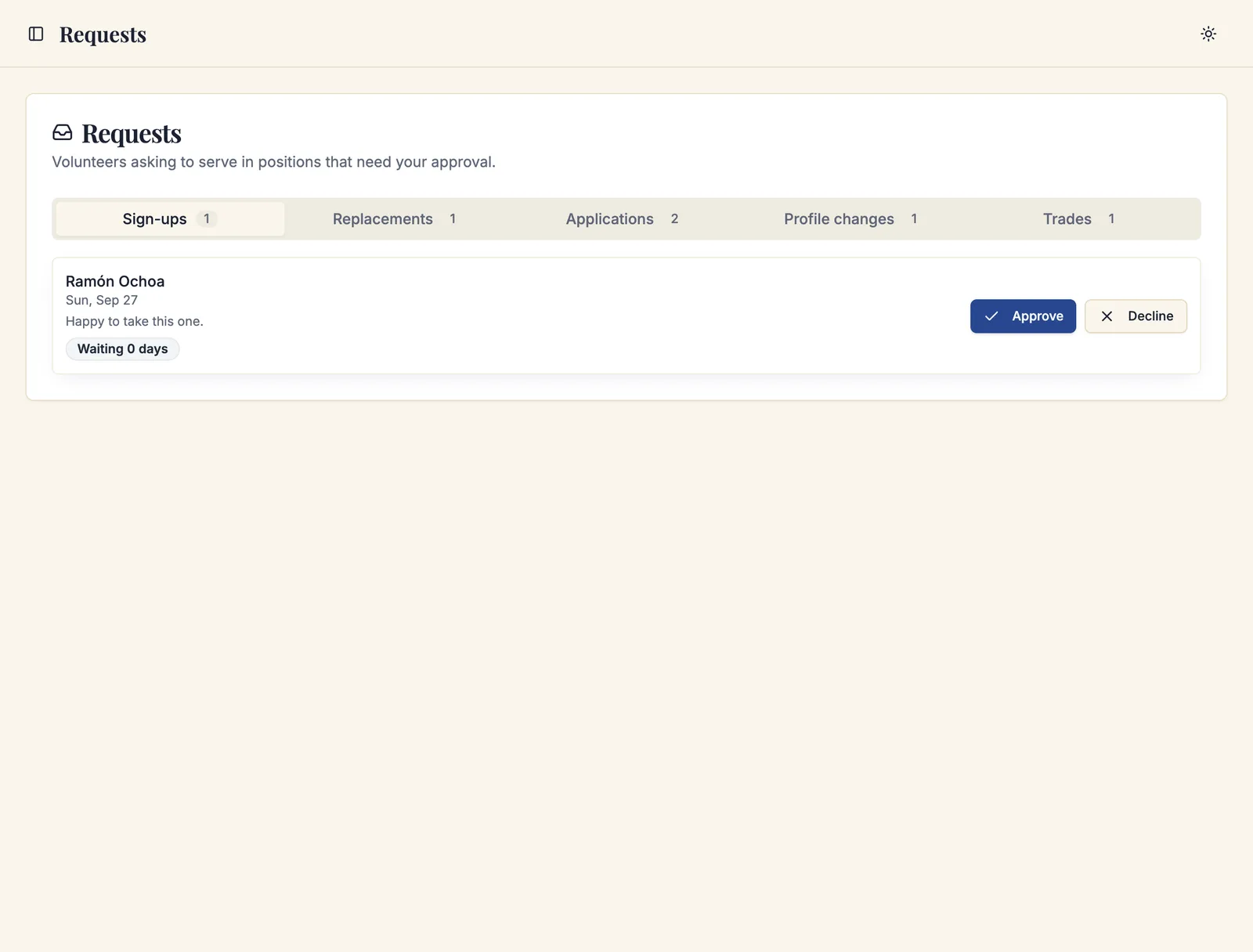
The inbox has five tabs: Sign-ups, Applications, Profile changes, Replacements, and Trades. Each item shows how long it has been waiting, and time-sensitive ones carry urgency badges — Cutoff in 6 hours, Expires in 2 days, Cutoff passed, Expired.
Work the tabs in order of how much they cost when they go stale: Replacements first (a service is at risk), then Sign-ups (a volunteer is waiting to be told yes), then Trades, then Applications and Profile changes.
Sign-ups
When a service requirement lets volunteers sign up with approval, each claim arrives here.
Each request shows the volunteer, the position, the service, and the date. Click Approve to assign them, or Decline.
Approving one request for a position closes the others: Sacramentum tells you n other requests for that position were closed.
A request can no longer be approved if the volunteer has since become ineligible, if the position was filled another way, or if the service is now too close or already started. Sacramentum says which:
| Message | What happened |
|---|---|
| That volunteer can no longer take the position | Something changed since they asked — a lapsed credential, a new unavailability, a serving cap. |
| That request was already decided | Another leader got there first. |
| That request expired because the service is too close or has started | It passed the cutoff. Contact the volunteer directly if you still want them. |
| That position has already been filled | Someone else took it. |
If a guardian made the request for a young person, the row shows Requested by (name).
Applications
When someone asks to join a ministry — from Serve → My ministries in My Parish, or through a public form your parish has linked to the scheduler — the application lands here.
An application from a public form may arrive without being connected to a parish record. In that case it shows Match this applicant to a parishioner record first:
- Click Match person.
- Search the parish directory and find the matching record.
- Click Use this person.
- Review the match, then Approve or Decline the application.
Approving enrolls them in the ministry. If they were already a member, Sacramentum says so and changes nothing.
Applications are always matched to a canonical People record before anyone is enrolled. This is what keeps a public sign-up form from quietly creating a second copy of a parishioner your parish has known for thirty years. If no record matches, create the person under Admin Dashboard → People → Directory first.
Profile changes
Volunteers can edit their own availability, preferences, contact details, and ministry membership. Which of those apply immediately and which wait for review is set under Settings → Ministry Scheduling — by default availability and preferences apply right away, while contact details and membership changes come here.
Review each change and Approve or Decline it.
Replacements
When a volunteer cannot serve, they click I need a replacement on their assignment. What happens next depends on the ministry's replacement mode.
The volunteer stays assigned until someone accepts. Their row on the schedule board shows Replacement requested — you serve until someone accepts, so a position is never quietly empty.
First to accept
Eligible volunteers are invited. The first one to accept is assigned, everyone else is told the position was covered, and the request closes. Usually there is nothing for you to do.
Leader picks
Invited volunteers reply that they are available, and you choose. In the Replacements tab, each open request shows the invitation statistics — n invited · n yes · n no — and lists each candidate as Available, Declined, No reply yet, or Serving.
- Click Select next to the volunteer who should serve. If they carry warnings, confirm with Confirm despite warnings.
- If nobody has been invited yet, or you want to widen the net, click Invite all eligible. Sacramentum reports how many invitations were sent, or tells you No eligible volunteers to invite.
If the service time changes after invitations went out, affected candidates are marked Awaiting re-confirmation and must confirm the new time before they can be selected.
When a replacement request goes unanswered
If nobody accepts before the cutoff, the request expires and Sacramentum tells the original volunteer and the leader: No replacement was found. The original volunteer remains assigned; arrange coverage manually. That is the moment to pick up the phone.
Very close to a service — within two hours by default — volunteers can no longer request a replacement online. Their leader is notified instead.
Trades
Two volunteers can swap assignments directly. One offers a trade to a mutually compatible volunteer, the other picks one of their own eligible assignments to offer back, and the first confirms.
What happens then depends on Trade approval under Settings → Ministry Scheduling:
- Complete automatically — if both volunteers are still eligible, both schedules update and nobody needs to approve anything.
- Leader review required — the agreed trade arrives in this tab.
Each trade shows both assignments, both volunteers, and any Eligibility warnings. Click Approve or Reject.
Both volunteers and both assignments are revalidated together at the moment you approve. If either side no longer qualifies, no schedule change is made — you will see One or both volunteers are no longer eligible for this trade. A trade that is already blocked shows The trade is currently blocked; approving it changes nothing unless both sides become eligible again.
Trade statuses you will see:
| Status | Meaning |
|---|---|
| Waiting for the other volunteer | The offer has been sent; they have not chosen a return assignment. |
| Waiting for proposer confirmation | A return assignment was offered; the first volunteer must confirm. |
| Awaiting leader approval | Both agreed. It is in your queue. |
| Completed | Both schedules updated. |
| Declined / Cancelled / Expired | The trade ended without a change. |
| No longer valid | The underlying assignments changed. |
Trades also close near the service: It is too close to this service to arrange a trade online.
Keeping the inbox honest
- Urgency badges are the priority list. Anything showing Cutoff in n hours should be decided today.
- A declined request is better than a stale one. A volunteer who is told no can plan; a volunteer waiting nine days cannot.
- Watch the Leader workload report. It shows pending sign-ups, open replacement requests, and the age of the oldest pending item across the ministries you lead. See Ministry reports.
Troubleshooting
The inbox is empty but a volunteer says they submitted something
Check your scope. A ministry leader only sees requests inside their granted ministries and roles; a parish administrator sees everything. Also check whether the item has already been decided by another leader.
I cannot approve a sign-up
Read the message. The volunteer has become ineligible, the position was filled, the request was already decided, or the cutoff has passed. Contact the volunteer directly if you still want them to serve.
A trade will not approve
One or both volunteers are no longer eligible. Open the trade to see the eligibility warnings. Nothing was changed on either schedule.
Nobody was invited to cover a replacement
There were no eligible volunteers — everyone was unavailable, already serving, capped out, or missing a required credential. The leader is notified so it can be arranged by hand. The Replacement response report shows how often this happens.
What's next
- Ministry reports — response times, workload, and how often replacements get filled
- Scheduling rules and limits — cutoffs, trade approval, and volunteer edit policy
- Replacements and trades — the volunteer's side of these workflows
Related articles
- Building a schedule — requesting a replacement from the board
- Service requirements — turning self-signup on for a role
- Leaders and access — who may review requests and approve trades
- Managing people — matching an applicant to a parish record