Service requirements
A service requirement answers one question for one service: who does this Mass need? Two lectors, four altar servers, six extraordinary ministers, one sacristan. Once you have written that down for the 10:00 Sunday Mass, every future occurrence of that Mass inherits those positions, and building a schedule becomes a matter of filling them rather than remembering them.
Service requirements also staff parish life beyond the liturgy — collection counters, catechists, hospitality after Mass — for any event on the Events Calendar. See Staffing other parish events.
Before you begin
- Your ministries and roles must already exist. See Ministries, roles, and members.
- The Mass schedules you want to staff must already exist under Admin Dashboard → Masses. Service requirements attach to those schedules; they do not create them. See Managing schedules.
The Service Requirements page
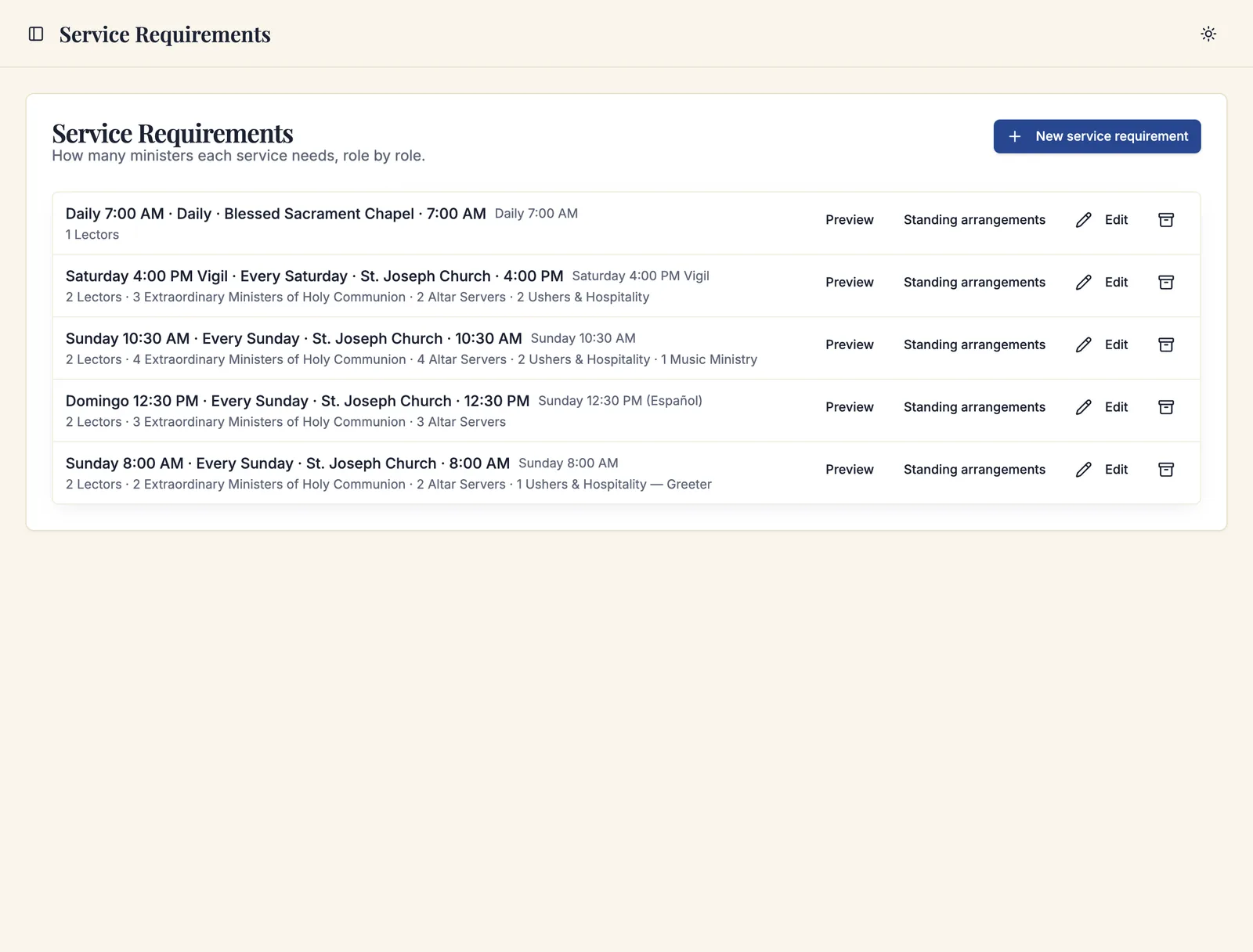
Navigate to Admin Dashboard → Ministry Scheduler → Service Requirements. Requirements are grouped the way a parish reads its week — Weekend, Weekdays, holy days and other special Masses, Celebrations, and anything else — and sorted by day and time. Each row shows the Mass and church, then the roles it staffs and how many of each.
Beside each group, Sacramentum counts the Masses already set up (for example, 4 of 10 Masses set up) and names any kind of celebration not yet covered. Click Set up there to start a requirement with that group already open.
Archived requirements are tucked away at the bottom; click Show archived to see them.
Creating a service requirement
- Click New service requirement.
- Choose what the requirement covers. The Masses are sorted into tabs — Weekend, Weekdays, and Special (holy days, one-time Masses by date, and monthly Masses) — and the search box finds a Mass by church, day, or time. Tick as many Masses as share the same roles; Select all weekend Masses ticks a whole tab at once.
- To staff celebrations, open the Celebrations tab and tick Weddings, Funerals, Baptisms, or Quinceañeras. Every celebration of that kind gets these roles, including ones added later. Each kind can belong to only one requirement.
- Click Continue. Covers now shows what you chose; click Change to adjust it.
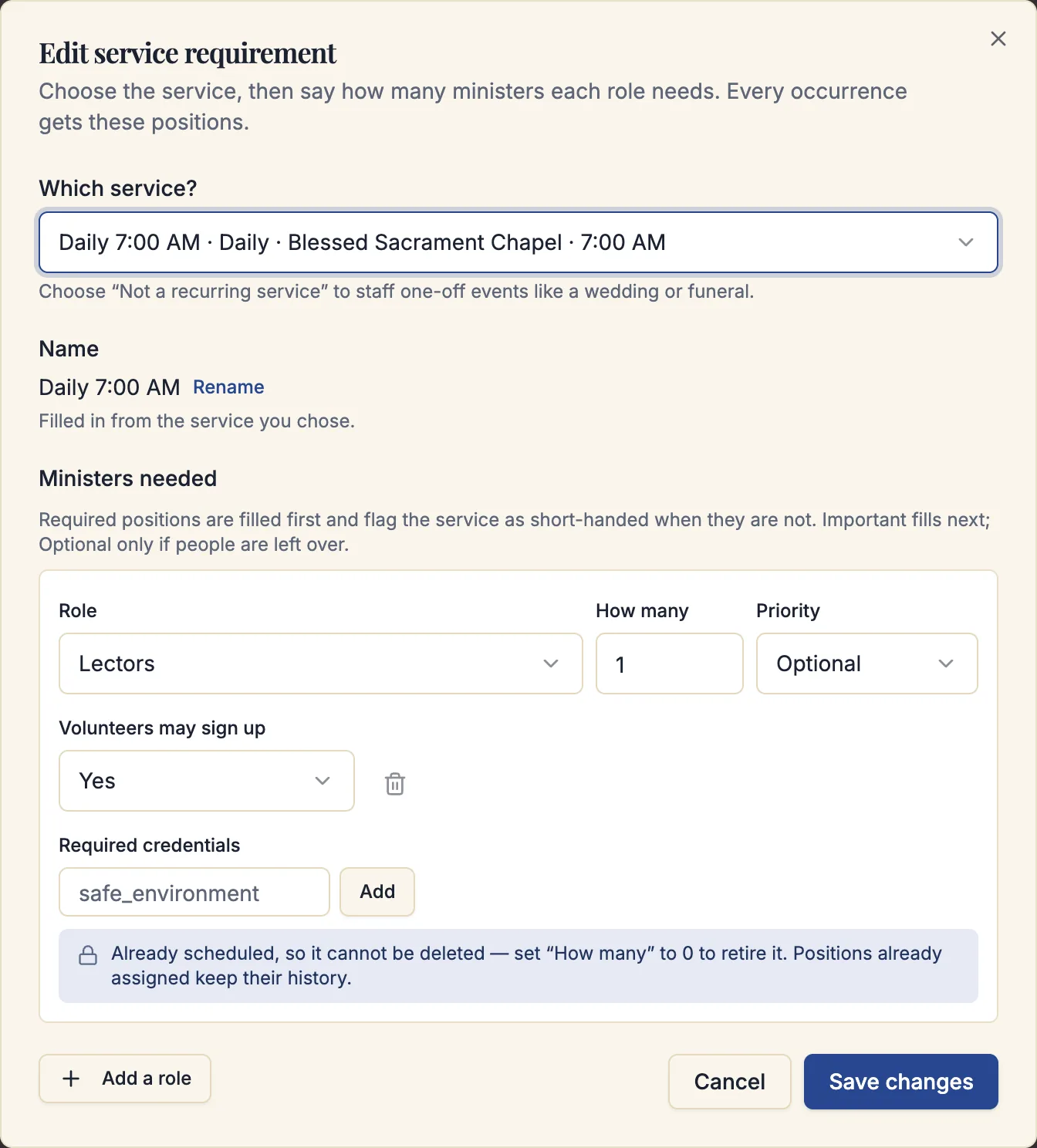
- Under Ministers needed, say which roles this service needs. If other services are already set up, Start from an existing setup lists the setups they use, those for the same kind of Mass first, with each one's roles and the Masses that use it. Click Use to copy its roles, then adjust them; See all … setups searches every setup by Mass, church, or role. Otherwise click Add a role for each role, and for each one set Role, How many, and Priority (explained below). Click the arrow beside a role for its More settings:
- Track attendance — record who actually served.
- Volunteers may sign up — No, Yes, or Yes, with approval.
- Required credentials — any certification a person must hold to fill this position.
- Save. With one Mass or one set of celebrations, the Name fills in automatically; click Rename if you want something more descriptive. With several, Sacramentum saves one requirement for each Mass, named after its schedule, plus one for the celebrations, all with the same roles. Each can be changed later on its own.
- Open the ⋯ menu beside the new requirement and choose Preview to see what it will produce on the next occurrences.
A requirement that covers no Mass and no kind of celebration is still useful for staffing celebrations one at a time — a large funeral that needs more ministers than usual, for example. After saving it, attach those celebrations to it from Preview.
To give more Masses the roles of a requirement you already have, open its ⋯ menu and choose Copy to other Masses…. Tick the Masses, click Continue, and save. Only the roles are copied; standing arrangements name people for one Mass, so they stay where they are.
Positions are created per occurrence, not per schedule. A requirement of four altar servers on a Mass celebrated every Sunday produces four positions every Sunday, for as long as schedules keep covering those dates.
Staffing other parish events
Volunteers serve far beyond the liturgy: collection counters, religious education catechists, hospitality after Mass, the parish picnic. A service requirement can staff any event on the Events Calendar.
-
Click New service requirement and open the Other parish events tab, or click Set up beside Other parish events on the Service Requirements page.
-
Choose what the requirement covers:
- Repeating events — a whole repeating event, such as Sunday collection counting or Tuesday religious education. Every date gets the roles, including dates added later and dates after the event is changed "from this date on" on the Events Calendar.
- One-time events — a single event, such as the parish picnic. Use the dates and the search box to find it.
Only the event you choose gets these roles; other bookings on the Events Calendar are unaffected.
-
Click Continue, give the requirement a Name, and add its roles.
Volunteers see the requirement's name, not the event's title. Titles on the Events Calendar can include a renter's or a family's name, so Sacramentum never shows them to volunteers. Name the requirement for the service itself — "Sunday collection counting", "Grade 3 catechists" — and don't include anyone's name. Renaming the requirement updates the positions volunteers already see.
If the activity isn't on the Events Calendar yet, add it there first (Events Calendar → Add event), then click Refresh in the list. For something that needs no room, such as a garden work day, turn on Announcement only so nothing is reserved.
To change an event's date, time, or room, edit it on the Events Calendar; its positions follow. An event awaiting approval can be chosen now; its positions appear once it is approved, unless your parish also staffs events awaiting approval.
Choosing an event needs access to the Events Calendar. Older requirements that covered every facility booking keep working, but an event they cover can't also get its own requirement — turn off or narrow the older requirement first.
Duties: work done any time within a week or a month
Some service has no set time: cleaning the church in October, laundering the altar linens one week, keeping the flowers fresh. A duty covers it. Volunteers are scheduled for a week or a month and do the work whenever suits them within it.
- Click New service requirement and open the Duties tab, or click Set up beside Duties on the Service Requirements page.
- Choose an existing duty, or click New duty and fill in:
- Duty name in English (Spanish optional). Volunteers see this name.
- Instructions (optional), such as where the supplies are kept.
- Repeats: every week or every month. For weekly duties, choose which day each week starts.
- First date and, if it ends, a last date.
- Place (optional). No room is reserved.
- Click Continue and add the roles, for example two Cleaners each month.
Each week or month becomes its own set of positions, filled like any other: by a leader, a standing arrangement, automatic scheduling, or volunteers signing up. A volunteer's schedule shows the duty as "Week of Sun, Oct 4" or "October 2026", with no time of day, and their calendar shows it as an all-day entry. A duty never clashes with a Mass, so the same person can clean the church in October and read at Sunday Mass. On the schedule board, a duty appears in every week it covers, so October's cleaners show up in each week of October.
Volunteers mark their duty done in My Parish, with the days and hours they worked, until a week after it ends; a few days before it ends, anyone who has not gets one reminder email. On the board each person on a duty shows Done, To do or Overdue. Overdue means the period ended and nobody marked it done; nothing is ever marked done automatically. A leader who reconciles attendance can open the position and choose Record as done, or Reopen to take it back. A duty counts as served only once it is done.
To change a duty, open the Duties tab and use the pencil beside it. You can rename it and change its instructions, place and last date. Its rhythm (weekly or monthly, the week's first day, the first date) stays as it is; to change that, set a last date and create a new duty. The archive icon ends a duty: the weeks or months still to come are cancelled, and the ones already served stay on record.
Priorities
Priority tells the scheduler — and you — which gaps actually matter.
| Priority | What it means |
|---|---|
| Required | Filled first. If a required position is still open, the service is flagged as short-handed, and the schedule cannot be published without acknowledging it. |
| Important | Filled after required positions. An open Important position is visible but does not block publication. |
| Optional | Filled only if people are left over. |
A typical Sunday Mass has one lector as Required and the second as Important; four servers where two are Required and two Optional; and the full complement of extraordinary ministers as Required because Communion cannot be distributed without them.
Letting volunteers sign themselves up
Each role in a requirement carries its own Volunteers may sign up setting:
- No — the position is filled only by a leader, a team, a standing arrangement, or automatic scheduling.
- Yes — an eligible volunteer who claims the position is assigned immediately.
- Yes, with approval — the volunteer's claim arrives in the Requests inbox as a sign-up waiting for a leader's decision.
Volunteers see the positions they may claim in My Parish under Serve → Open positions. Sacramentum only offers them positions they are actually eligible for, so a volunteer never sees a slot they would be refused.
Self-signup is the single biggest labor saver in the whole scheduler, and it works best when you start narrow. Turn it on for one or two roles where the parish is comfortable with whoever volunteers — ushers, greeters, choir — and leave it off for the roles you want a leader's eye on.
Required credentials
Under Required credentials, add the certification keys a person must hold to fill this position — safe_environment is the common one. Use a lowercase key made of letters, numbers, and underscores, and use the same key you record on the members' credentials.
The constraint is enforced everywhere: a volunteer without a current, unrevoked credential of that type cannot be assigned by a leader, cannot claim the position, cannot be placed by automatic scheduling, and cannot accept a replacement invitation for it.
Previewing what a requirement creates
Open the ⋯ menu beside any requirement and choose Preview to see the next occurrences of the service and the positions they will produce. This is the fastest way to catch a requirement pointed at the wrong Mass schedule, and it is worth doing before you build your first schedule of a season.
If an occurrence has been changed for a particular day — a holy day with extra ministers, a Mass moved to a different church — the preview marks it Changed for this day.
Editing and retiring a requirement
Edit a requirement at any time. Changes apply to positions generated from then on; positions that already exist in a schedule keep what they had until you regenerate them.
Until a schedule or a one-day change uses a role, you can delete it with the trash icon beside it. Once one does, the role shows a lock instead: set How many to 0 to retire it, and positions already assigned keep their history. If a filled position blocks a reduction, release the assignment first, then reduce the count.
To stop using a requirement entirely, choose Archive from its ⋯ menu. Archiving stops it from generating new positions and leaves everything it produced in the past untouched.
Changing a requirement after a schedule has generated its positions puts that schedule out of step. Sacramentum flags this at validation time as Staffing requirements changed after positions were generated. Regenerate the schedule's positions to bring it back in line.
Standing arrangements
Each requirement's ⋯ menu also opens its Standing arrangements — the recurring commitments that place a person or a team on this service automatically whenever a schedule is built. The Herrera family always takes the Saturday vigil; the Tuesday crew covers the first Tuesday of every month.
Standing arrangements are covered in full in Teams and standing arrangements.
Troubleshooting
A schedule generated no positions
The most common cause is that no service requirement covers the Masses in the schedule's date range. Check that a requirement exists for each Mass schedule you expected to staff, that it is not archived, and that its Covers field shows the right Mass schedule. The schedule's Skipped occurrences list names the reason for each occurrence it passed over.
Positions were created for a Mass that was cancelled
They were not — cancelled occurrences are skipped, and the schedule records the reason as The Mass is cancelled. If a Mass is cancelled after positions were generated, the positions are withdrawn and the assignments are reversed when the schedule next reconciles.
I cannot lower the number of positions
A position in that role is already filled. Release the assignment on the schedule board, then lower the count. If the role is no longer used at all, set How many to 0 to retire it.
What's next
- Teams and standing arrangements — record the commitments that repeat
- Building a schedule — generate positions and fill them
- Automatic scheduling — have Sacramentum propose the assignments
Related articles
- Ministries, roles, and members — the roles a requirement draws on
- Managing schedules — the Mass schedules requirements attach to
- Open positions — what self-signup looks like to a volunteer