Ministries, roles, and members
The ministry catalog is the foundation everything else in the Ministry Scheduler rests on. A ministry is a group your parish schedules — Lectors, Altar Servers, Ushers, Music. A role is a schedulable position inside a ministry — a music ministry might have Cantor, Organist, and Choir Member. A membership enrolls one person in one role. Get these three right and the rest of the scheduler simply follows.
Before you begin
- The Ministry Scheduler must be enabled for your parish under Settings → Ministry Scheduling.
- Members are enrolled from your existing People records, so the parishioners you plan to enroll should already exist in the parish directory. See Managing people.
- Ministry and role names are stored in both English and Spanish. Each volunteer sees the name in their own language, so fill in both fields.
The Ministries page
Navigate to Admin Dashboard → Ministry Scheduler → Ministries. The page has a list of ministries on the left and, once you select one, four tabs on the right: Roster, Roles, Classifications, and Credentials.
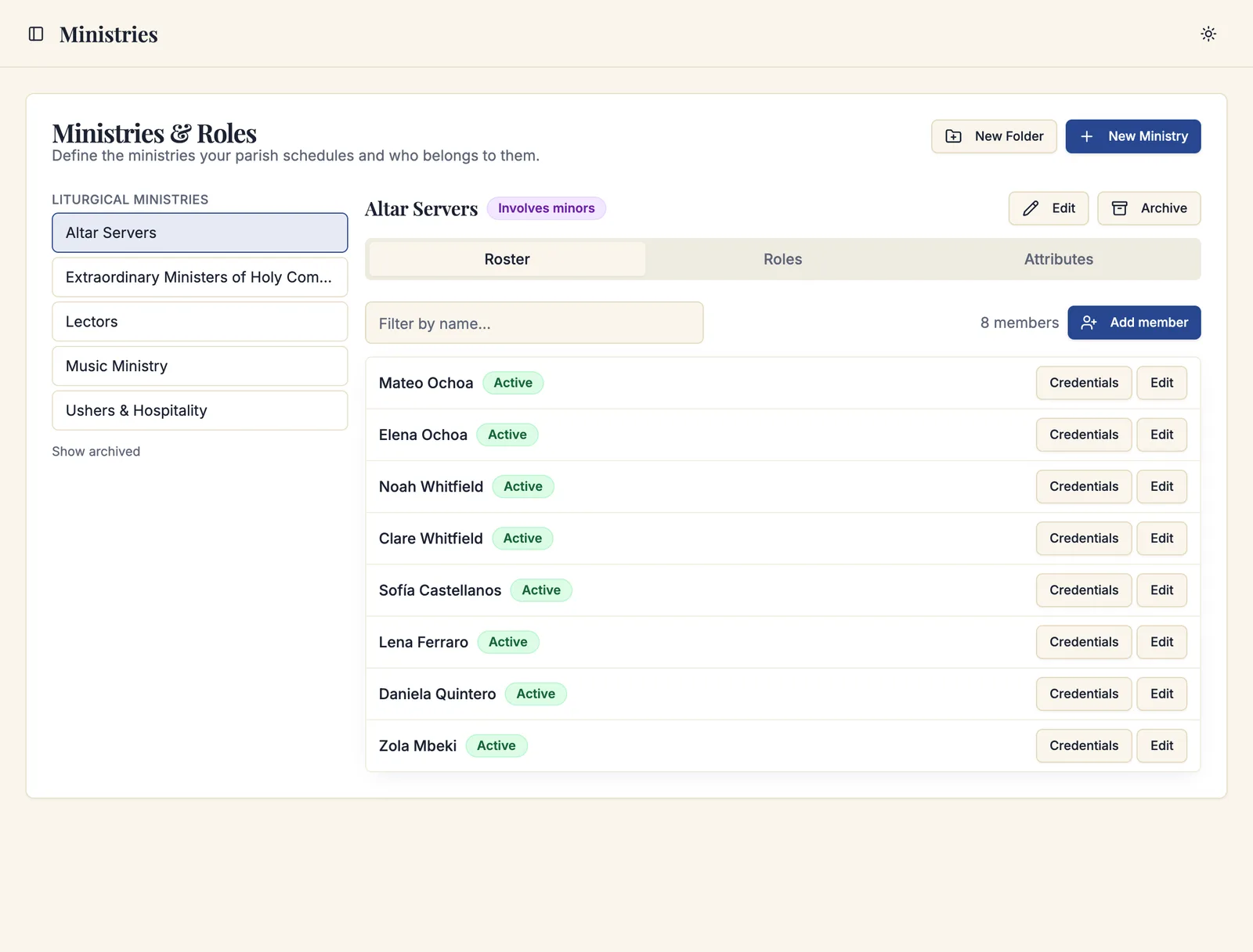
Archived ministries are hidden by default. Click Show archived below the list to see them, and Hide archived to collapse the list again.
Creating a ministry
- Click New Ministry.
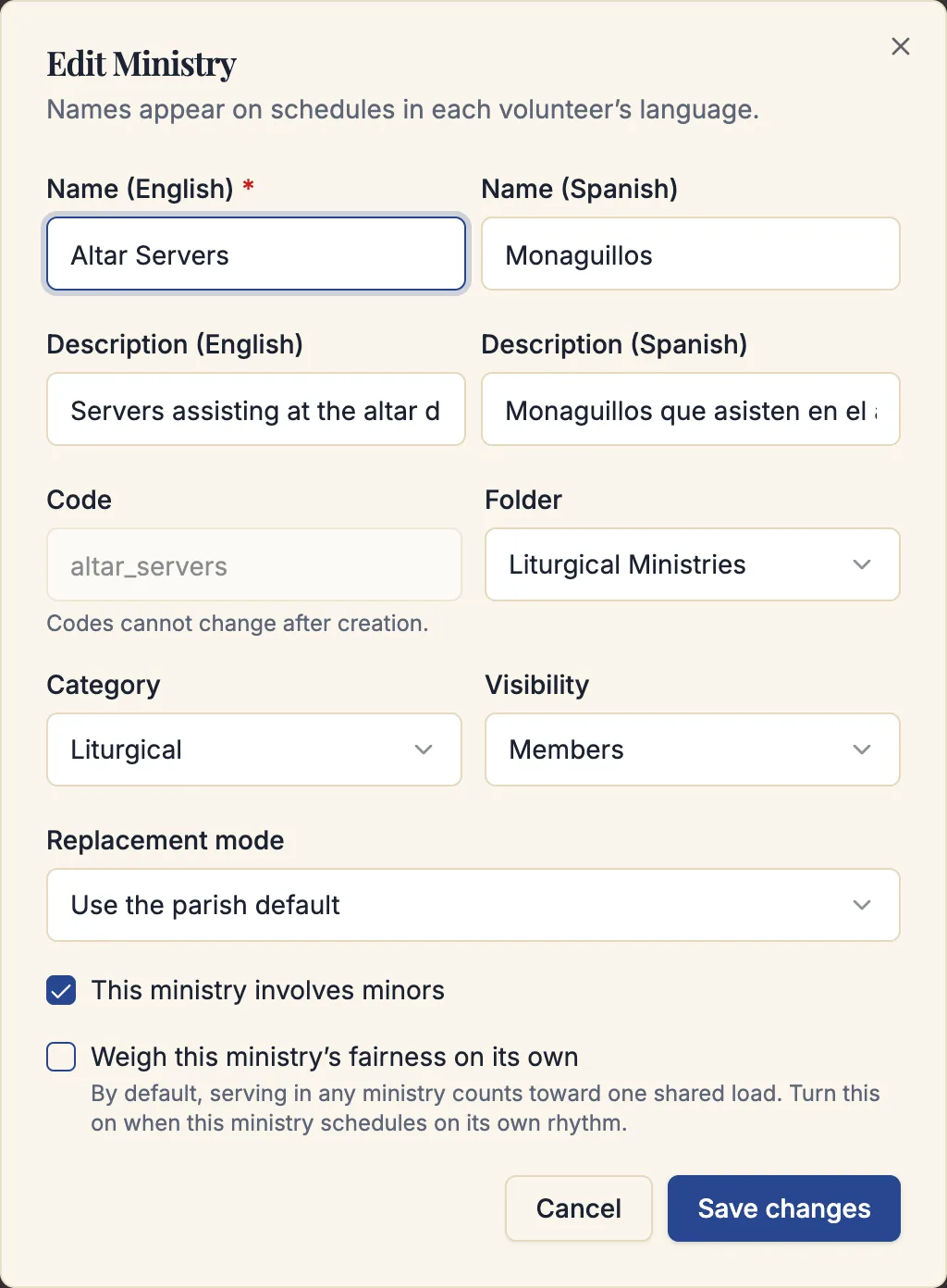
- Enter the Name in English and in Spanish.
- Optionally add a Description.
- Enter a Code if you want a stable identifier for exports and imports. Leave it blank to have one generated.
- Choose a Folder if you use folders, or leave it as No folder.
- Choose a Category — Liturgical, Music, Hospitality, Formation, Outreach, Service, or Other.
- Choose a Visibility:
- Public — the ministry appears to anyone browsing ministries to join.
- Members — only current members and leaders see it.
- Private — only administrators and scoped leaders see it.
- Turn on This ministry involves minors if young people serve in it. This is not cosmetic — it enables the guardian and Safe Environment protections described below.
- Set the ministry's scheduling defaults, then click Create ministry.
The Code cannot be changed after the ministry is created. Everything else — name, description, folder, category, visibility — can be edited later.
Ministry scheduling defaults
Two settings on the ministry editor change how the scheduler treats this ministry:
- Replacement mode — what happens when a volunteer asks to be replaced. First to accept serves gives the position to whoever responds first; A leader picks among volunteers collects everyone who says they are available and lets a leader choose. Leave it on Use the parish default unless this ministry genuinely needs different handling.
- Weigh this ministry's fairness on its own — by default, serving in any ministry counts toward one shared load, so someone who ushers twice a month is not also expected to lector twice a month. Turn this on only when a ministry schedules on a rhythm of its own and should not be balanced against the others.
Logged hours
Turn on Members can log their own hours when members of this ministry serve outside the schedule: an extra afternoon in the garden, an evening sorting the food pantry. Members then see Log hours in My Parish under Serve. Their hours count straight away, up to 12 hours an entry and as far back as 90 days. Leaders who reconcile attendance can correct or remove an entry from the Service hours report; each change needs a reason, which is kept with the entry. See Ministry reports.
Folders
If your parish schedules more than a handful of ministries, group them. Click New Folder, name it in both languages, and then assign ministries to it from each ministry's editor. Folders appear as headings above the ministry list, and they can also be used as a scope when you delegate access to a leader.
Creating roles
A ministry is not schedulable until it has at least one role. Sacramentum creates a default role with each new ministry; add more when a ministry genuinely schedules distinct positions.
- Select the ministry, open the Roles tab, and click New Role.
- Enter the Name in English and Spanish.
- Choose the Qualification approval policy — how someone becomes qualified for this role:
- Leader approval — a ministry leader confirms each new member.
- Admin approval — a parish administrator confirms each new member.
- Open enrollment — anyone who asks is enrolled.
- Decide whether One person may fill multiple positions at the same service. Leave this off for most roles; turn it on for a role where doubling up is normal, such as a single usher covering two doors.
- Turn on Volunteers may ask to join this ministry themselves if you want this role listed to parishioners looking for somewhere to serve.
- Add Position labels if the positions in this role are meaningfully different — "Ambo," "Cup 1," "Cup 2," "Thurifer," "Crucifer." Without labels, positions are simply numbered.
- Optionally set Who can fill it — see below.
- Click Create role.
Roles no longer ask for a code. Sacramentum keeps a stable internal identifier for exports and imports, but you never see it and never have to invent one.
Who can fill it
A role can carry two optional eligibility requirements:
- Minimum age on service date — checked against the person's birth date for each service, not once at enrolment. A server who turns ten in March becomes eligible in March, without anybody remembering to revisit it.
- Sex eligibility — Unrestricted, Male, or Female.
Both are Unrestricted by default, and most roles should stay that way. Set them only where your parish or diocese actually restricts the role; they are enforced, so a requirement set carelessly quietly removes people from the schedule.
Where the information needed to judge is missing from a person's record, they are not silently excluded — they are held back with Parish staff must verify eligibility for this role, so somebody looks rather than the system guessing. A volunteer who does not meet a requirement on a given date sees You do not meet this role's eligibility requirements on the service date.
Guardian rules for young servers still apply on top of this. Eligibility narrows who may fill a role; it does not replace the family and pairing rules described in Scheduling rules.
Position labels are worth the few minutes they take. A volunteer who sees "Cup 3" on their phone knows where to stand; a volunteer who sees "Extraordinary Minister #3" has to ask.
Roles also carry a Counts toward achievements setting, which keeps altar-server roles feeding the servers' leaderboard and the sacristy kiosk. Leave it on for altar-serving roles and off for everything else.
Roles one person may combine
Below the role list is Roles one person may combine. By default, nobody may hold two roles at the same service — a lector cannot also be a Communion minister at the same Mass. When your parish does allow a combination, record it here:
- Click Allow a combination.
- Pick the First role and the Second role.
- Choose the mode:
- May be combined — one person may hold both roles at the same service. The pairing is always flagged so leaders can see it.
- Only when no one else can serve — reserved as a rescue. Automatic scheduling may use it when a required position would otherwise go unfilled, and a leader may confirm it by hand, but volunteers cannot take the second role themselves.
These rules apply parish-wide, across every ministry, and only parish-wide scheduling administrators can change them.
Classifications
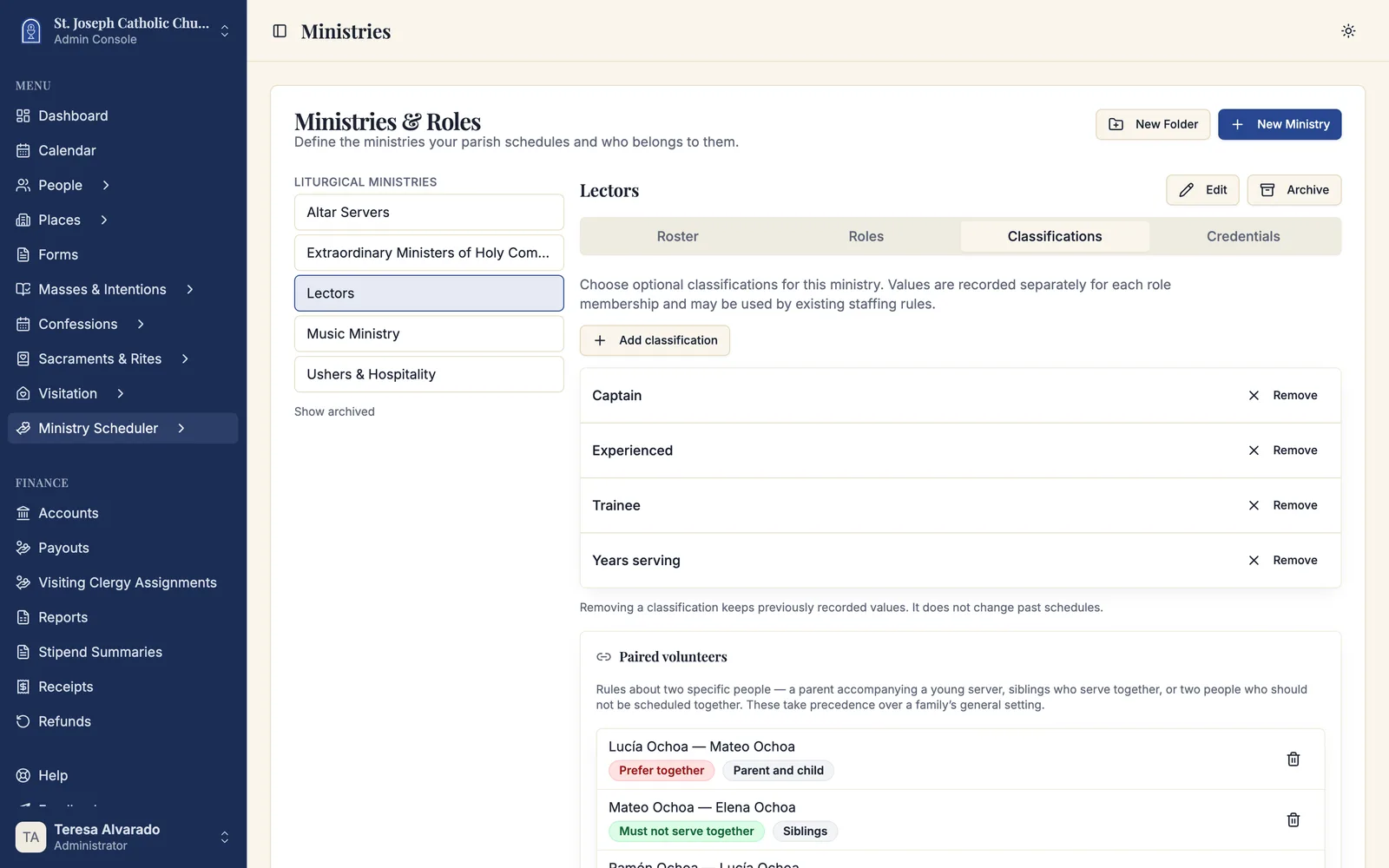
Classifications describe members, not positions — captain, experienced, trainee, drives-at-night, reads-Spanish. They are how you record the distinctions that later drive who gets scheduled where.
They work in two layers, and the distinction matters:
- A parish definition exists once for the whole parish. "Experienced" means the same thing in every ministry that uses it.
- Each ministry chooses which of those definitions it actually records. Enabling one here turns it on for this ministry only.
Classifications are entirely optional. A ministry with none enabled shows No classifications are enabled. Volunteers can be scheduled without adding any. — which is the normal state for most ministries, not a setup step anyone forgot.
Adding one to a ministry
On the Classifications tab, click Add classification and either pick an existing parish definition or Create a custom classification, giving it:
- A Label in English and Spanish.
- An Answer format — Yes / No, Choose one option (with comma-separated Options), or a Number.
Once enabled, it can be recorded on any membership in that ministry from the roster.
Removing and archiving
Remove takes a classification out of a ministry. Values already recorded are kept and past schedules do not change — removal stops it being recorded from now on, it does not rewrite history.
A classification a staffing rule depends on cannot be removed while that rule stands: Sacramentum names the rule and asks you to resolve it first. That is deliberate — silently removing it would quietly change who a schedule considers eligible.
Archive retires a custom definition across the whole parish, removing it from every picker while preserving recorded values. A definition still selected by a ministry, referenced by a rule, or recorded on an active or pending membership cannot be archived.
Credentials
Credentials are qualifications a person holds rather than distinctions within a ministry — Safe Environment, a background check, a diocesan certification. A service requirement can demand one, and an expired credential is a hard block that no override clears.
On the Credentials tab, click New credential and name it the way your parish says it. Services can then require it, and it can be recorded against a person from the roster.
You are not asked for a reference code. Sacramentum derives one from the name and keeps it stable, and staff never see it.
Credentials differ from classifications in the way that matters most on a schedule: a missing classification is usually a preference, while a missing or expired credential is a refusal.
Enrolling members
Open the Roster tab for the selected ministry.
- Click Add member.
- Search the parish directory by name. Only active people appear, and anyone already enrolled is marked Already enrolled.
- Click Enroll next to the right person.
The member joins with a status you can then adjust. Use the search box and the role filter above the list to find people in a large roster, and the pagination controls below it to move through the pages.
Members always come from the canonical parish People records. If someone is not in the directory yet, add them there first. This is what makes the scheduler safe: when your parish merges two duplicate person records, the memberships, assignments, and serving history follow automatically.
Editing a membership
Click Edit on any roster row to open the membership editor.
Status controls whether the person is schedulable at all:
| Status | Meaning |
|---|---|
| Pending | Enrolled but not yet approved to serve. |
| Active | Fully schedulable. |
| Inactive | Temporarily not serving — a sabbatical, a semester away. |
| Suspended | Blocked from serving, usually for a Safe Environment or pastoral reason. |
| Archived | No longer part of the ministry. History is kept. |
Scheduling mode controls how an active member may be scheduled:
| Mode | Meaning |
|---|---|
| Normal | Scheduled like anyone else. |
| Substitute only | Never placed in the normal rotation, but eligible to cover replacements. |
| Manual only | A leader must place them by hand; automatic scheduling skips them. |
| Preassigned only | Only placed by a standing arrangement or a team. |
The same dialog carries the classifications enabled for that ministry, the Valid from and Valid until dates that bound the membership, a Kiosk display name, whether to Show on the achievements leaderboard, and free-text Notes.
Substitute only is the right setting for the retired parishioner who is happy to step in but does not want a standing spot, and it is far kinder than repeatedly assigning and releasing them.
Credentials
Many ministries — every ministry involving minors, and often extraordinary ministers of Holy Communion — require a certification your diocese tracks. Click Credentials on a roster row to see and manage them.
To record one:
- Click Record credential.
- Enter the Type as a lowercase key, such as
safe_environment. - Fill in the Issuer, Issued on, and Expires on dates.
- Add a Document reference and Notes if your parish files paperwork.
- Click Record credential.
Recording a second credential of the same type renews it: the new one becomes active and the old one moves to History.
A credential can be Verified by a leader who has seen the paperwork, or Revoked. Revoking blocks that person from serving in every ministry that requires the credential; to restore them later, record a new credential of the same type.
Credentials are enforced, not advisory. If a service requirement lists a required credential, a volunteer without a current one cannot be assigned, cannot sign up, and cannot accept a replacement invitation. Watch the Credential expiry report so certificates are renewed before they lapse.
Sacramentum emails a volunteer when a credential is about to expire, using the lead days set in Settings → Ministry Scheduling.
Guardians for young volunteers
When a ministry involves minors, the young person's scheduling notices should reach a parent. Guardian links are managed on the person's record, not here: go to Admin Dashboard → People → Directory, open the young person, and use the Guardians panel on the Ministry tab.
From there you can Propose from household — Sacramentum suggests the adults in the same household — and then Confirm each one. A proposed link does nothing until it is confirmed. Each guardian carries a relationship (parent, legal guardian, grandparent, other) and a notification routing choice: notify the guardian only, notify both, or notify the young person only. One guardian can be marked the Primary contact.
Confirmed guardians can also act on the young person's behalf in Serve — recording availability, claiming open positions, and answering replacement invitations. See Families and young servers.
Archiving
Ministries and roles are archived, not deleted, so their history survives. Select a ministry and click Archive, or use Archive on a role row. Click Restore to bring either back.
If active records still point at the item, Sacramentum blocks the archive and shows you exactly what is in the way — active ministries in the folder, active roles in the ministry, active members in the role. Clear those first, then archive.
The default role of a ministry cannot be archived on its own; archive the ministry instead.
Troubleshooting
"Cannot archive yet" when archiving a ministry
Active roles or active memberships still reference it. The dialog lists the counts. Archive the roles and set the memberships to Archived first.
A member does not appear in the candidate list for a position
Check, in order: their membership Status is Active; their Scheduling mode is not Manual only or Preassigned only; their membership validity dates cover the service date; they hold any credential the service requirement demands; and they have not marked themselves unavailable for that date.
Someone was enrolled twice
They were most likely enrolled under two duplicate person records. Merge the duplicates from Admin Dashboard → People → Data Cleanup → Duplicate candidates; the memberships and serving history merge with them.
What's next
- Service requirements — say how many of each role every service needs
- Scheduling rules and limits — family rules, caps, and the parish-wide defaults
- Building a schedule — turn requirements into positions and fill them
Related articles
- Managing people — the parish directory members come from
- Households — the family records family scheduling rules read
- Families and young servers — how guardians act for a minor
- Leaders and access — let a ministry leader manage their own roster