Automatic scheduling
Automatic scheduling looks at the open positions in a schedule, weighs everyone eligible to fill them, and produces a proposal. Nothing is written to the schedule until you look at the proposal and click Apply. This is deliberate: the scheduler is a very fast, very patient assistant that has read every availability entry and every preference, but it is not the pastor, and it does not get the last word.
Before you begin
- The schedule must be in Draft or Live state, and its positions must already be generated. See Building a schedule.
- The more your volunteers have entered — availability, preferences, serving frequency — the better the proposal. A roster with no availability on file produces a mechanically fair schedule that ignores every real-life constraint.
Running a proposal
Automatic scheduling appears as Automatic scheduling on each schedule under Admin Dashboard → Ministry Scheduler → Schedules.
- Decide whether to turn on Also move positions a previous run filled. Leave it off the first time.
- Click Propose a schedule.
- Wait for the run to finish. It moves through Preparing, Queued, Starting, Running, and then Ready to review.
- Click Review on the finished run.
A run never touches the schedule while it is working, so you can leave the page and come back.
"Also move positions a previous run filled"
When this is on, the run may move assignments that a previous automatic run created, if doing so produces a better overall schedule.
It never touches anything else. Manual assignments, self-signups, standing arrangements, and team placements are left exactly where they are. Turn it on when you have run automatic scheduling once, then added more volunteers or availability, and want the whole picture reconsidered.
Reading the proposal
The proposal header reads Proposal: (filled) of (open) positions, and below it you get three things worth reading before you apply anything.
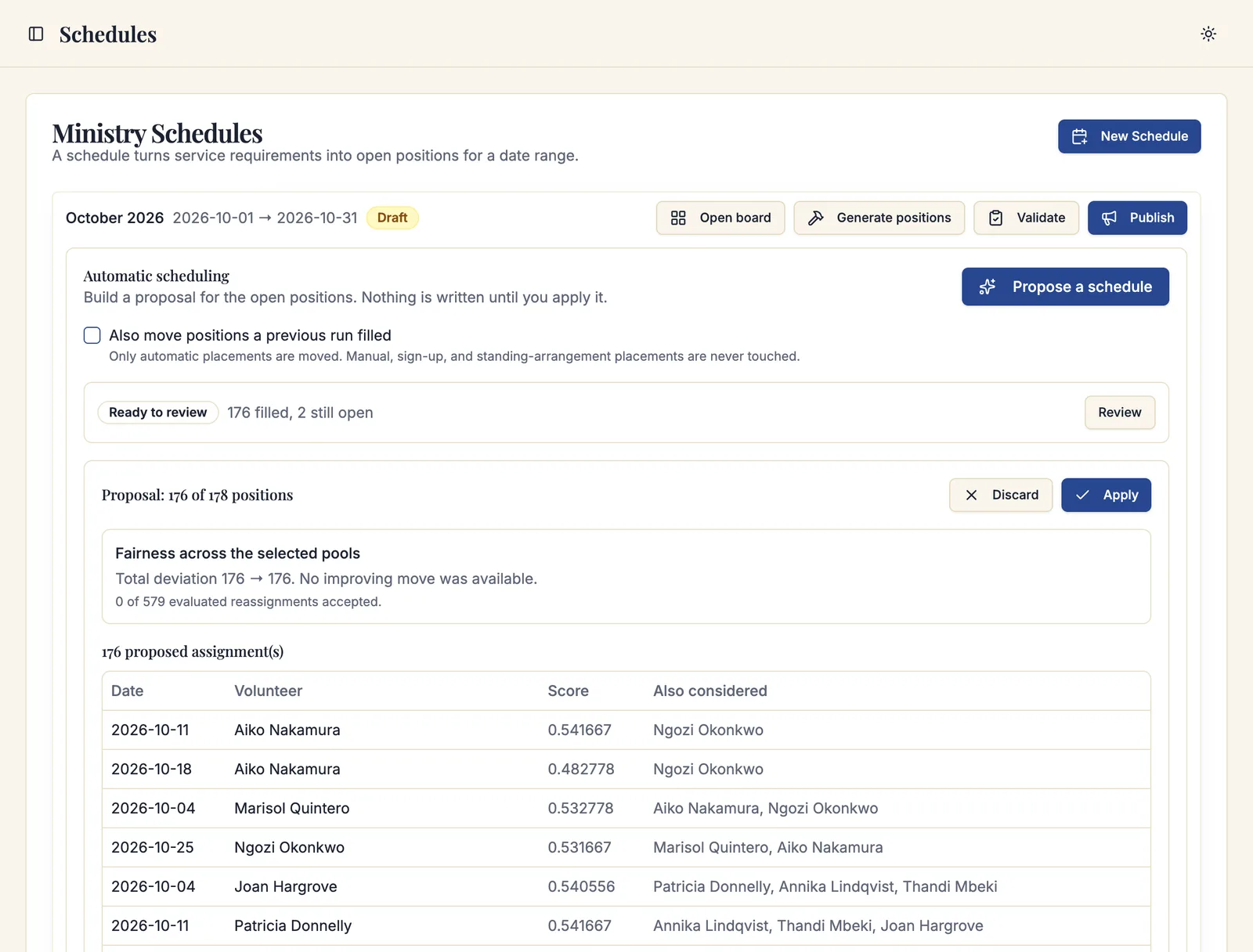
The proposed assignments
A table of every assignment the run wants to make — the Date, the Position it fills, the Volunteer, and a Score. The last column, Also considered, names the other candidates the run weighed for that position, so you can see what it preferred them to.
The fairness change
How evenly this spreads the load answers the question in one sentence: whether the proposal shares the load more evenly than the schedule does now, or about as evenly as it already does. Underneath, a basis line shows the working — how many possible swaps the run weighed, how many it took, and the imbalance score before and after, where lower is more even.
Fairness in Sacramentum is not "everybody serves the same number of times." It is deviation from what each volunteer could reasonably be expected to serve, given the positions they were actually eligible for, their stated serving frequency, and their availability. Someone available one weekend a month is not under-served for serving once a month.
The positions it could not fill
Positions the run could not fill lists every gap, marking the Required ones. Each gap is explained with a funnel that shows the candidate pool shrinking layer by layer:
14 in the pool → after membership: 11 → after qualifications: 9 → after availability: 2 → after overlapping services: 0
The layers are membership, qualifications, availability, overlapping services, serving limits, household rules, and scheduling mode. Where relaxing one layer would help, the run says so: Relaxing serving limits would free 3 candidates.
This funnel is the most useful thing in the whole feature and it is easy to scroll past. When a required position cannot be filled, the funnel tells you exactly which rule to look at — and often the answer is not "recruit more volunteers" but "the weekend cap is one lower than this roster can support."
Applying or discarding
- Apply writes the proposed assignments to the schedule. Sacramentum reports how many were applied, and how many were skipped because the schedule had changed — someone filled a position by hand while the run was being reviewed.
- Discard throws the proposal away. The schedule is untouched.
- Retry runs it again, which is what you want after changing a rule, adding volunteers, or recording availability.

You can review a proposal, discard it, change something, and run again as many times as you like. Nothing accumulates.
Reviewing and applying are separate permissions. A ministry leader may be granted Run auto-fill without Apply auto-fill proposals, in which case they see the proposal and the message You can review this proposal, but applying it needs the apply permission. See Leaders and access.
Run states
| State | Meaning |
|---|---|
| Preparing | Gathering the positions, roster, and rules. |
| Queued / Starting / Running | Working. Nothing is written yet. |
| Ready to review | Finished. Open it with Review. |
| Applying / Applied | Being written, or written. |
| Discarded | You threw it away. |
| Out of date | The schedule changed enough that the proposal no longer matches. Run a fresh one. |
| Failed / Cancelled | See the message on the run. |
When a run refuses
Some refusals are actionable, and the message says what to do:
| Message | What to do |
|---|---|
| This proposal covers too many candidate combinations | Select fewer roles or a shorter date range, then retry. |
| This proposal is too large to save safely | Same — narrow the scope and retry. |
| The selected scope has too much history to evaluate safely | Narrow the scope, or shorten the fairness history window under Settings → Ministry Scheduling. |
| The fairness history window is longer than the scheduler supports | Shorten it in Settings, then retry. |
| This schedule is closed or archived | Reopen the schedule before retrying. |
| The proposal could not be prepared | Retry once. If it fails again, contact support. |
The size limits are real, not arbitrary: a whole year of every ministry at once is a very large problem, and the honest answer is to schedule a season at a time.
How to work with it well
- Do the fixed placements first. Standing arrangements and teams should already be in place before you run a proposal, so the run is only solving what is genuinely open.
- Collect availability before you run. A proposal built on an empty availability table will look fine and be wrong.
- Read the unfilled list before the filled list. The assignments it made are usually unsurprising; the gaps are where you learn something.
- Apply, then review the board. Automatic scheduling is a starting point, not a verdict. Adjust anything that a person would have done differently, and publish.
Troubleshooting
The proposal filled almost nothing
Look at the funnel on the unfilled positions. The layer where the pool collapses is your answer — most often availability (nobody has entered any, or too many people are away) or serving limits (a parish-wide cap that a small roster cannot satisfy).
It scheduled someone I did not expect
Read the Also considered column on their row. The run names who else it weighed. If the choice is genuinely wrong, the fix is usually a scheduling rule rather than a manual override — set their scheduling mode, record a preference, or add a pairing rule.
The same person keeps getting scheduled
Check whether their serving frequency preference asks for it, and check the Fairness and distribution report to see whether they really are over-served or simply the only eligible person. See Ministry reports.
A run says "Out of date"
The schedule changed after the proposal was built. Discard it and run a fresh one.
What's next
- Building a schedule — review and adjust the board after applying
- Publishing and sharing schedules — get the finished schedule to your volunteers
- Ministry reports — check fairness and coverage across the season
Related articles
- Scheduling rules and limits — the layers the funnel names
- Teams and standing arrangements — the placements a run leaves alone
- Leaders and access — granting run and apply separately